Showing posts with label VirtualBox. Show all posts

Monday, October 25, 2021

Windows Development Software - Local Dev Env

This is a series of posts which will list some useful apps for development and general usage of Windows. These are just some examples of what can be useful. Of course, use any app you already know or have.

local dev env:

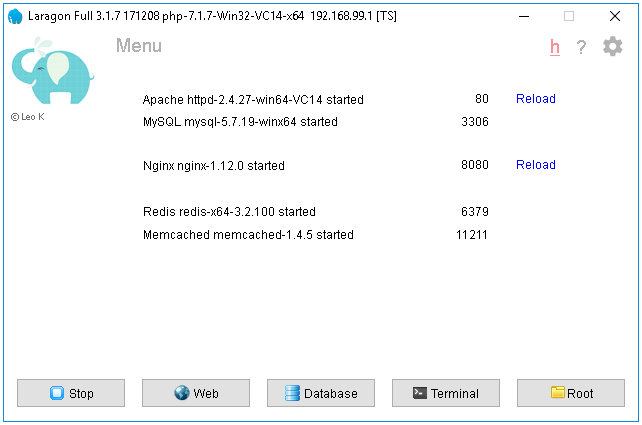
Laragon

https://github.com/leokhoa/laragon

Laragon is a portable, isolated, fast & powerful universal development environment for PHP, Node.js, Python, Java, Go, Ruby. It is fast, lightweight, easy-to-use and easy-to-extend.


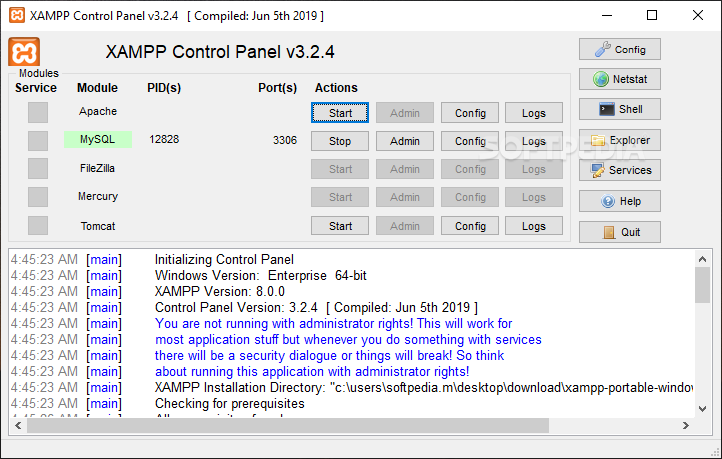
XAMPP

https://www.apachefriends.org/

XAMPP is a completely free, easy to install Apache distribution containing MariaDB, PHP, and Perl. The XAMPP open source package has been set up to be incredibly easy to install and to use.

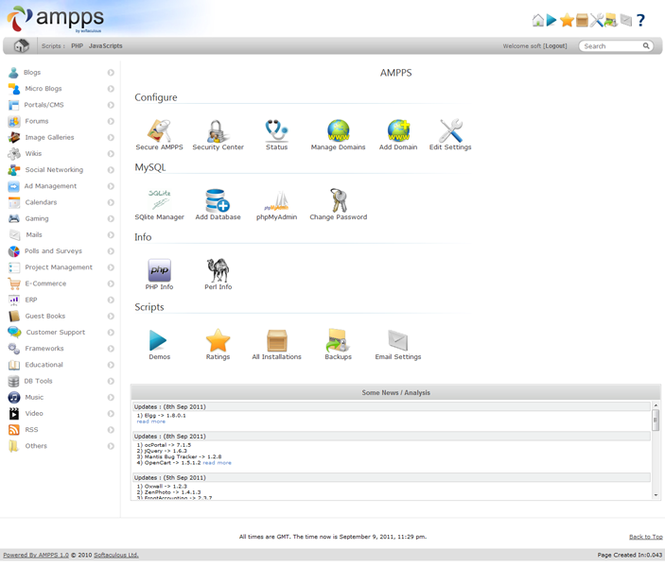
Ampps

https://ampps.com/

AMPPS is a WAMP, MAMP and LAMP stack of Apache, MySQL, MongoDB, PHP, Perl & Python. With AMPPS you can create a website by installing any of the 419 Apps, customizing it, and then simply publishing it on the internet via a wide choice of hosting service providers.


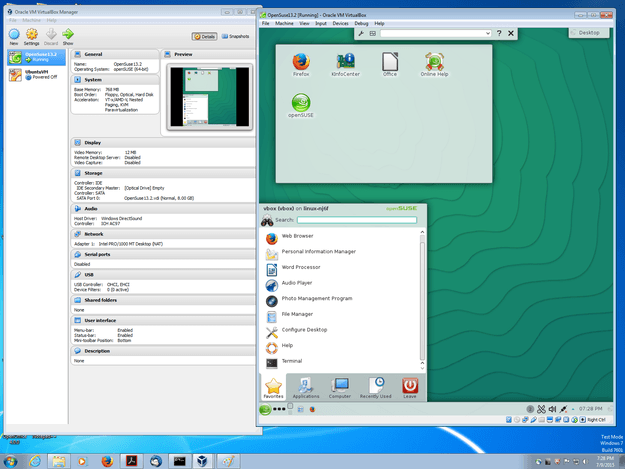
Virtual Box

https://www.virtualbox.org/

VirtualBox is a powerful x86 and AMD64/Intel64 virtualization product for enterprise as well as home use. Not only is VirtualBox an extremely feature rich, high performance product for enterprise customers, it is also the only professional solution that is freely available as Open Source Software 


Docker

https://www.docker.com/products/docker-desktop

Docker helps developers bring their ideas to life by conquering the complexity of app development. We simplify and accelerate development workflows with an integrated dev pipeline and through the consolidation of application components. Actively used by millions of developers around the world.
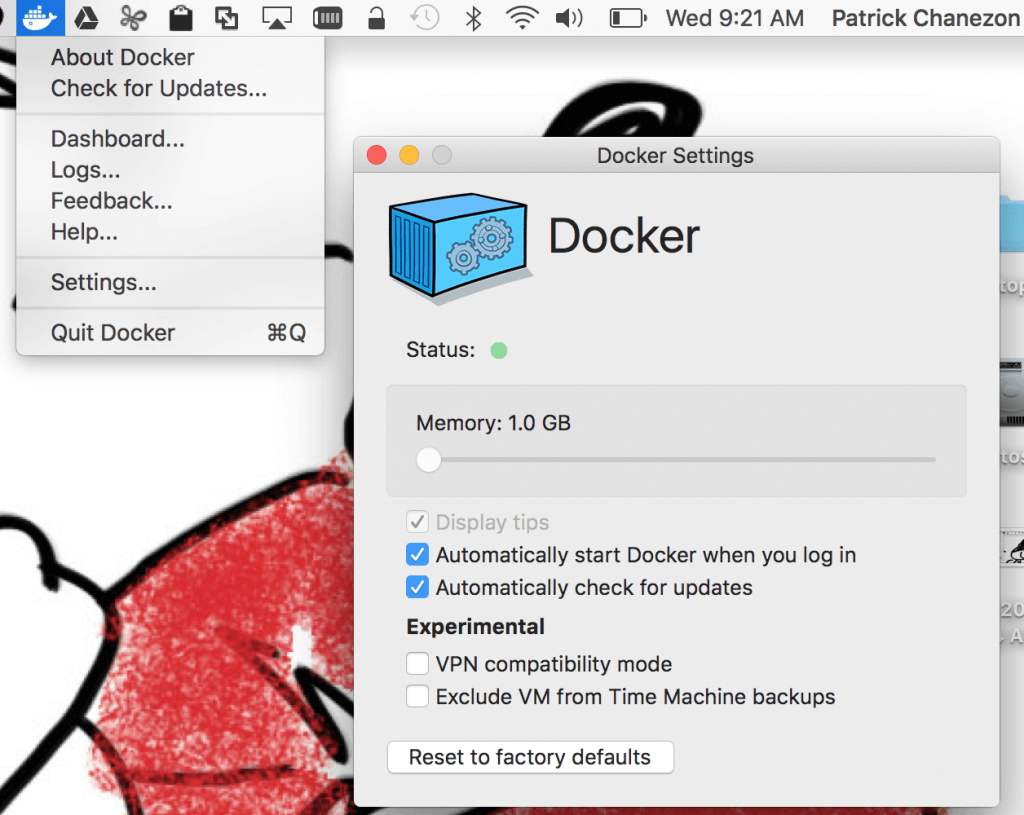


WSL

https://docs.microsoft.com/en-us/windows/wsl/install-win10

The Windows Subsystem for Linux lets developers run a GNU/Linux environment -- including most command-line tools, utilities, and applications -- directly on Windows, unmodified, without the overhead of a traditional virtual machine or dualboot setup.
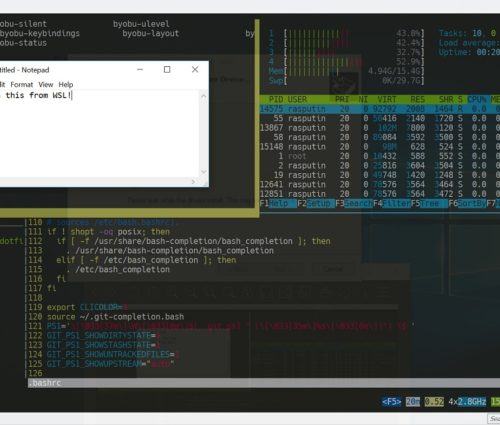


Cloud Droplets

https://www.digitalocean.com/products/droplets/

Easy, fast, and flexible compute

Spin up your choice of virtual machine in just 55 seconds. Basic, General Purpose, CPU-Optimized, or Memory-Optimized configurations provide flexibility to build, test, and grow your app from startup to scale.
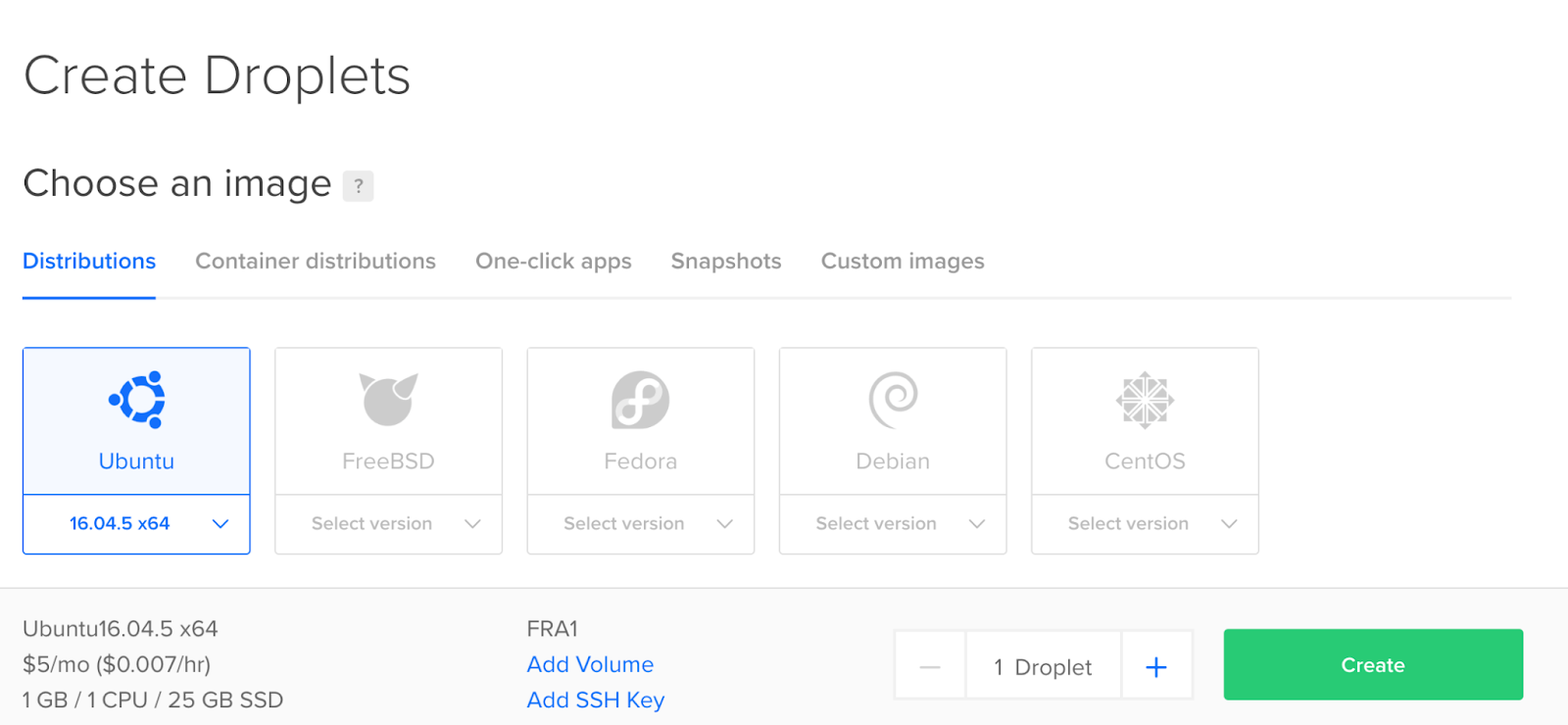

Cloud EC2

https://aws.amazon.com/ec2/

Amazon Elastic Compute Cloud (Amazon EC2) is a web service that provides secure, resizable compute capacity in the cloud. It is designed to make web-scale cloud computing easier for developers. Amazon EC2’s simple web service interface allows you to obtain and configure capacity with minimal friction. It provides you with complete control of your computing resources and lets you run on Amazon’s proven computing environment.


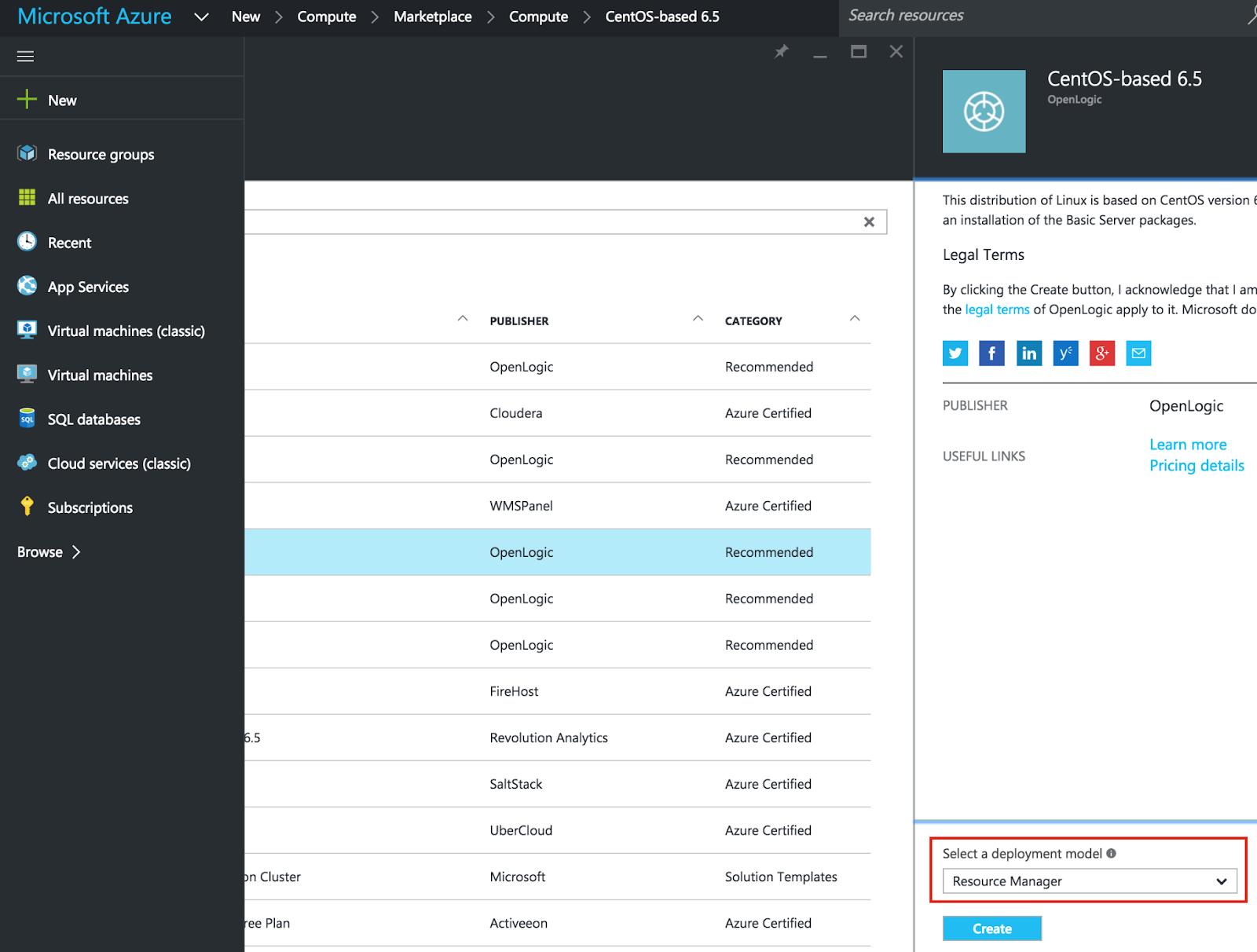
Cloud Virtual

https://azure.microsoft.com/en-us/overview/linux-on-azure/red-hat/

Deploy secure, reliable, flexible hybrid cloud environments using Red Hat solutions on Azure—a fully comprehensive cloud for open source architectures


-End of Document-
Thanks for reading

Monday, January 8, 2018

Unable to use VirtualBox full screen

To enable the full functionality of VirtualBox, you often have to install Guest Additions, which enable features such as shared drives and better video support, such as being able to auto size the Guest VM display to the current dimensions of the VirtualBox gui, or to view the Guest VM in full screen.

“Guest Additions are designed to be installed inside a virtual machine after the guest operating system has been installed. They consist of device drivers and system applications that optimize the guest operating system for better performance and usability.”
VirtualBox Manual

When you upgrade the OS within a Guest VM, it’s kernel may change requiring you to re-install Guest Additions. You will know the Guest Additions need to be re-installed when basic features such as viewing the Guest VM in full screen no longer work.

Tuesday, January 2, 2018

VirtualBox Shared Folders

Within VirtualBox, you can enable shared drives to facilitate the transfer of files between the Guest VM and the Host computer.

To install VirtualBox you can follow this guide How to Install VirtualBox
To install a Ubuntu VM you can follow this guide How to Install a Ubuntu Virtual Machine.

To enable Shared Folder between the VirtualBox Host and Guest VM:

Tuesday, December 26, 2017

How to Configure a VirtualBox Virtual Machine

VirtualBox is a cross-platform virtualization software, which allows you to run another Operating System (such as Ubuntu) from your current Operation System (such as Windows). Using VirtualBox, you can try out, play with, test, or develop with other Operating Systems without having to reinstall your computer or potentially more complicated try to multi boot your computer.

In virtualization software terms, your computer is called the Host, while the other Operating Systems, or OSs for short, you install through the virtualization software, VirtualBox, are called Guests. Guests are often called Virtual Machines, or Guest VMs, or VMs for short. You can install as many Virtual Machines as you want. So you can try Ubuntu, Mint Linux, Windows Insider, Windows Server, Mac OSX, etc all from within your current Windows or Linux Host. The Virtual Machines are also self contained within one folder so you can backup or transfer the Virtual Machine to another computer. Thus you have a portable Operating System; of course, with the requirement of installing VirtualBox on the other Host computer.

Requirements: VirtualBox needs to be installed. You can follow this guide How to Install VirtualBox 

Launch VirtualBox
The Settings option allows you to further customize and adjust the hardware requirements of the VM

Monday, December 18, 2017

How to Install a Ubuntu Virtual Machine

VirtualBox is a cross-platform virtualization software, which allows you to run another Operating System (such as Ubuntu) from your current Operation System (such as Windows).  Using VirtualBox, you can try out, play with, test, or develop with other Operating Systems without having to reinstall your computer or potentially more complicated try to multi boot your computer.

In virtualization software terms, your computer is called the Host, while the other Operating Systems, or OSs for short, you install through the virtualization software, VirtualBox, are called Guests.  Guests are often called Virtual Machines, or Guest VMs, or VMs for short.  You can install as many Virtual Machines as you want.  So you can try Ubuntu, Mint Linux, Windows Insider, Windows Server, Mac OSX, etc all from within your current Windows or Linux Host. The Virtual Machines are also self contained within one folder so you can backup or transfer the Virtual Machine to another computer.  Thus you have a portable Operating System; of course, with the requirement of installing VirtualBox on the other Host computer.

The following steps will show you how to install a Ubuntu Virtual Machine, aka VM.

Monday, December 11, 2017

How to Install VirtualBox

VirtualBox is a cross-platform virtualization software, which allows you to run another Operating System (such as Ubuntu) from your current Operation System (such as Windows). Using VirtualBox, you can try out, play with, test, or develop with other Operating Systems without having to reinstall your computer or try to multi boot your computer.

In virtualization software terms, your computer is called the Host, while the other Operating Systems, or OSs for short, you install through the virtualization software, such as VirtualBox, are called Guests. Guests are often called Virtual Machines, or VMs for short. You can install as many Virtual Machines as you want. So you can try Ubuntu, Mint Linux, Windows Insider, Windows Server, Mac OSX, etc all from within your current Windows, Max OSX, or Linux Host. The Virtual Machines are also self contained within one folder so you can backup or transfer the Virtual Machine to another computer. Thus you have a portable Operating System; of course, with the requirement of installing VirtualBox on the other Host computer.

The following steps will show you how to install VirtualBox on a Windows Host.