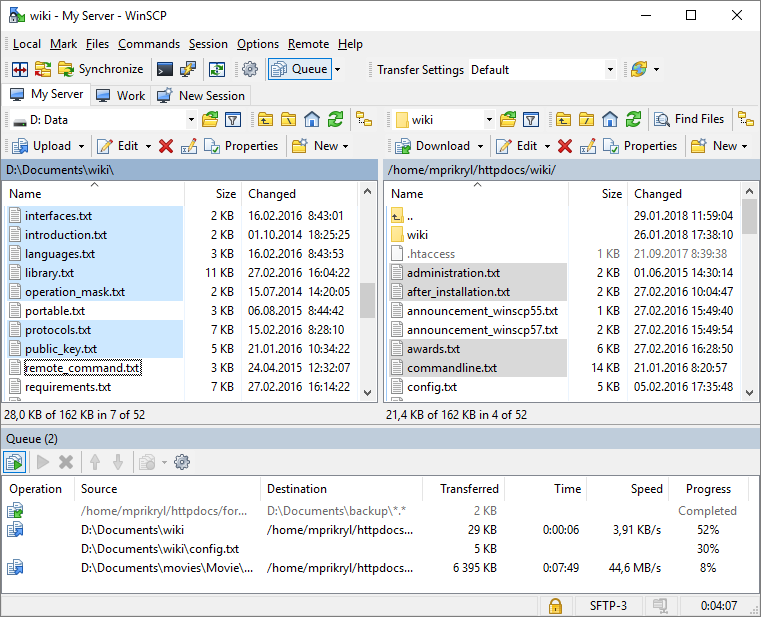
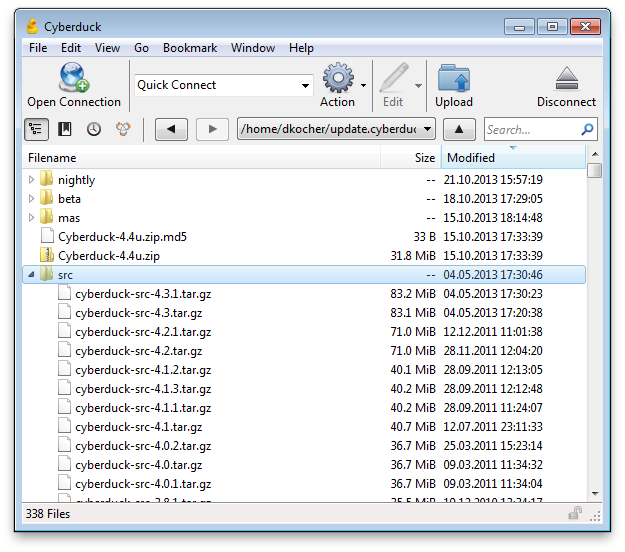
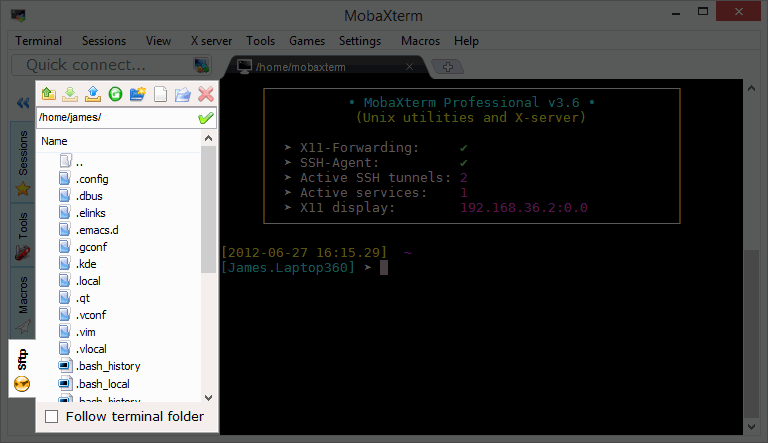
If you want to allow a user to upload files securely to a site, and they do not need shell access or know how to use shell, you can grant them SFTP only access. SFTP, which stands for SSH File Transfer Protocol, or Secure File Transfer Protocol, is a separate protocol packaged with SSH that works in a similar way over a secure connection. To an end user, SFTP works the same as FTP. You login, browse directories, and upload/download files, but more securely.
While FTPS adds a layer to the FTP protocol, SFTP is a different protocol based on the network protocol SSH (Secure Shell). Unlike both FTP and FTPS, SFTP uses only one connection and encrypts both authentication information and data files being transferred.
To add a SFTP only user to Red Hat Enterprise 8 (RHEL8)
Note, of course, should work for other Linux flavors too
1) Create your user appuser1
> sudo useradd -s /sbin/nologin appuser1
Verify
> grep /etc/passwd appuser1
While the SSH server will be configured to prevent shell access,
setting /sbin/nologin as shell adds another layer to not allow the user to SSH and get shell access
You can optionally create a group of sftp only users
> groupadd sftponly
And add you user to it
> sudo usermod -a -G sftponly appuser1
Note, make sure to add -a to append groups, else you will end up setting to only that one group
Verify
> grep /etc/groups appuser1
2) Update the SSH server to only allow your SFTP user and/or group
> sudo vim /etc/ssh/sshd_config
Find Subsystem SFTP, and, if needed, change it to
Subsystem sftp internal-sftp
> sudo vim /etc/ssh/sshd_config
# override default of no subsystems
#Subsystem sftp /usr/libexec/openssh/sftp-server # default
Subsystem sftp internal-sftp # must use for sftp 'jail'; similar to default
If you do not change the Subsystem SFTP, your SFTP client may report
"Cannot initialize SFTP protocol. Is the host running a SFTP server?"
and you may see errors in
/var/log/secure
Accepted password for wpsite1 from 172.30.0.160 port 52436 ssh2
pam_unix(systemd-user:session): session opened for user wpsite1 by (uid=0)
pam_unix(sshd:session): session opened for user wpsite1 by (uid=0)
pam_unix(sshd:session): session closed for user wpsite1
https://winscp.net/eng/docs/message_cannot_initialize_sftp_protocol
Toward the bottom, add
> sudo vim /etc/ssh/sshd_config
# web user
Match User appuser1
ChrootDirectory /var/www/html
ForceCommand internal-sftp
AllowTcpForwarding no
X11Forwarding no
While you can and should use SSH keys, you can also add
PasswordAuthentication yes
for only specific users, groups or ips
# app1 user on vpn network
Match User appuser1 Address 10.10.0.0/16
PasswordAuthentication yes
ChrootDirectory /data
ForceCommand internal-sftp
AllowTcpForwarding no
X11Forwarding no
# app1 users
Match Group sftponly
ChrootDirectory /var/www/html
ForceCommand internal-sftp
AllowTcpForwarding no
X11Forwarding no
3) create the directory where the SFTP user will be restricted to, also know as chroot or 'jail' directory
This directory, as specified by
ChrootDirectory, must be a root-owned directory that is not writable by any other user or group.
So if your website is in /var/www/html
> ls -ld /var/www/html
drwxr-xr-x 2 root root /var/www/html
You can use that directory for your SFTP user chroot directory
To create another directory
> sudo mkdir /data
> sudo chmod 755 /data
> ls -ld /data
drwxr-xr-x 2 root root /data
If the permissions for configured ChrootDirectory are not correct, you will see errors in
/var/log/secure
Accepted password for appuser1 from 10.10.0.2 port 52331 ssh2
pam_unix(systemd-user:session): session opened for user appuser1 by (uid=0)
pam_unix(sshd:session): session opened for user appuser1 by (uid=0)
fatal: bad ownership or modes for chroot directory "/home/appuser1" [postauth]
pam_unix(sshd:session): session closed for user appuser1
pam_unix(systemd-user:session): session closed for user appuser1
https://serverfault.com/a/660180/523393
4) Restart SSH
> sudo systemctl restart sshd
Note, if you configuration is incorrect, you will not be bounced from your current SSH session.
!But do fix and test the configuration before exiting!
"bouncing sshd is smart enough to permit existing ssh connections to merrily continue unabated "
https://askubuntu.com/a/462971/708501
5) Verify
Test you new user SFTP login .. should work
Test you new user SSH login .. should not work
Test your existing SSH login .. should still work
You have now created a limited SFTP user.
-End of Document-
Thanks for reading