Showing posts with label DevOps. Show all posts

Monday, October 9, 2023

Useful Linux Commands

Some useful Linux commands


  • cat

    cat [file]

    • cat = dump file contents to terminal; ls -l to ensure small file
  • df

    df -h

    • df = show disks space per partition
      • / = separate volume/disk for root os, logs
      • /data = separate volume/disk for websites, apps
    • -h = human readable size
  • grep

    grep [search] [files]

    • grep = filter results, look for patterns in files
    • Example: grep Error *.log
  • htop

    htop

    • htop = top list of processes, nicely colored; can sort, filter
  • kill

    kill [pid]

    • kill = force stop/kill a process; only use for 'hung' process
    • [pid] = pid from ps aux list
  • ls

    ls -lhtr [dir]

    • ls = list contents of directory
    • -l = details
    • -h = human readable sizes
    • -t = sort by time
    • -r = reverse sort, so new shows at bottom
    • -1 = just list names in a single column
    • Example: ls -lhtr logs/*
  • ps

    ps aux

    • ps = process list
    • a = all, including other users
    • u = user format
    • x = register format
    • Example: ps aux | grep nginx
  • reboot

    sudo reboot

    • reboot = reboot server; should not be needed; restart individual services
  • systemctl

    sudo systemctl [action] [process]

    • systemctl = manage services such as nginx, php-fpm
    • Example: sudo systemctl status nginx
    • Example: sudo systemctl restart nginx
    • Example: sudo systemctl status php-fpm
    • Example: sudo systemctl restart php-fpm
  • tail

    tail -f -n50 [file]

    • tail = returns the last few lines of a file
    • -n# = number of lines
    • -f = follow, useful for tailing an active log file
    • Example: tail -f logs/app.log
  • vim

    vim [file]

    • vim, vi = text editor; ls -l to ensure small file
    • arrow keys = move cursor
    • shift G = go to end of file
    • ctrl u = page up
    • ctrl d = page down
    • /[patttern] = search for pattern
    • esc = get out of most vi modes
    • :q = quit
    • :q! = quit without writing
    • :wq = write, quite
    • note, if quit a SSH session with a file vi-ed/open, be sure to SSH in again and cleanup the vi auto backup [file]~; vi-ing the original file again will prompt you about
    • Example: sudo vim /var/log/messages

-End of Document- 
Thanks for reading

Monday, September 18, 2023

DevOps SysAdmin Tips for researching a slow or unresponsive app or system

Some general tips for researching a slow or unresponsive app or system

Starting checklist

  • SSH to EC2/server 
    • Check disk space
      • df -h

    • Check processes
      • htop

      • ps aux

    • Check app logs
      • cd app/

      • ls -lhtr logs/

      • vim [log]

    • Check system logs
      • ls -lhtr /var/log/

      • tail -f -n50 /var/log/messages

  • SQL Processes
    • DB Gui: Tools -> Server Monitor -> SQL
  • Check AWS console
    • EC2 list
      • Monitoring
    • RDS list
      • Monitoring
      • Performance Insights
    • Cloud Watch
      • Alarms
      • Monitoring
  • App specific
    • grep (Find in Files, Search)
      • grep cron for script name
      • grep code for database table names, fields
      • grep [everything]
    • Check logs
      • Often located relative to script, in logs/ or log/
      • Can be also be in /var/log/[app dir]/

Logs

App logs

Locations will vary
Some apps may be relative to their PHP (or other language) files, often log/ or logs/
Some cron or processing logs may be in /var/log/[process dir]/

Note, log locations should be consistent to facilitate finding them.

Web Server logs

On some errors, such as fatal or configuration errors, PHP (or other language) info is outputted to the web server logs, such as Nginx

Nginx logs

nginx is the process name
PHP runs as a separate process, php_fpm
ls -lhtr /var/log/nginx

tail -n50 /var/log/nginx/[site]_error.log
tail -f /var/log/nginx/[site]_error.log
ls -lhtr /var/log/php-fpm/

System logs

ls -lhtr /var/log/

You may need to login as sudo user ec2-user to view system logs

/var/log/messages

Common log for OS messages

sudo vim /var/log/messages

/var/log/secure

Common log for login, security messages

sudo vim /var/log/secure


Web Server Config

Nginx is a common web server 

You can grep for dns or web directories to know

  • server_name = what dns is being used
  • root = which directory a site is being hosted from
  • error_log = where the log files are

grep [site] /etc/nginx/sites.d/*
vim /etc/nginx/sites.d/[site].conf

    server_name [site].com;
    set $env "dev";
    set $app_dir "[repo name]";

    root   /data/sites/$env/$app_dir/public/;

    access_log /var/log/nginx/[site].com_access_log;
    error_log  /var/log/nginx/[site].com_error_log error;


Cron

# .---------------- minute (0 - 59)
# |  .------------- hour (0 - 23)
# |  |  .---------- day of month (1 - 31)
# |  |  |  .------- month (1 - 12) OR jan,feb,mar,apr ...
# |  |  |  |  .---- day of week (0 - 6) (Sunday=0 or 7) OR sun,mon,tue,wed,thu,fri,sat
# |  |  |  |  |
# *  *  *  *  * user-name  command to be executed

# EXAMPLE CRON
*/10 * * * * [app user] /usr/bin/php -q /[process dir]/[script] [args if any] &>> \
/var/log/[process dir]/[script].log
  • ensure specify the app user
  • &>> [log] is shorthand for >> [log] 2&>>1
    • > = overwrite
    • >> = append
    • 2&>1 = redirect errors to standard out eg capture errors in log
  • compare to other crons to keep a consistent pattern

System crons

ls -lhtr /etc/cron.d/

Preferred
Crons in /etc/cron.d/ allow for custom runtimes. A cron file per concept/process/logical grouping should be created, and can contain multiple scripts/commands.

Note, there are other potential system crons such as /etc/cron.daily which will run crons .. daily, but without the flexibility of specify when during the day they run; cron.daily often runs at 2am or 3am depending on the OS. Only use /etc/cron.d/

User crons

crontab -l

view cron of current user

crontab -e

edit cron of current user

Not recommended
Crons can also be attached to a user. User crons are not easily accessible and are stored in one file per user, making a large number of crons harder to manage, and overly easy to delete (crontab -r = poof gone).  

To manually backup a users cron 

cd ~
crontab -l  > cron_[Ymd].txt


-End of Document-
Thanks for reading

Monday, March 21, 2022

PHPStan - static analysis of PHP code

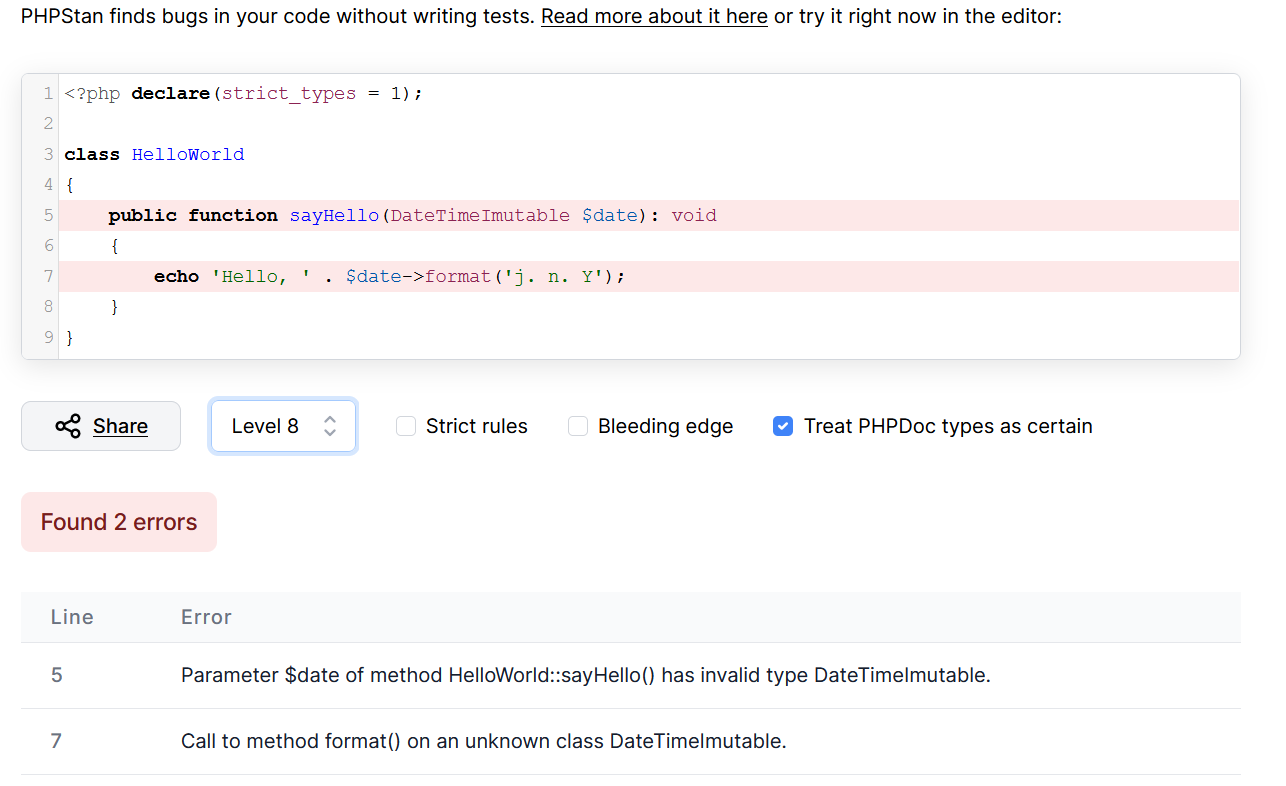
 'PHPStan finds bugs in your code without writing tests.' https://phpstan.org/

PHPStan performs static code analysis on your code.

Static analysis is the method of testing your code for basic logical, runtime or typographical exceptions without actually executing the code or accessing external services like databases

Static analysis of your codebase happens relatively fast since the code doesn't actually get executed but scanned for common errors, like having a method that doesn't return the expected date type.

PHPStan checks for a couple of language constructs such as use of instanceof, try-catch blocks, typehints, number of arguments passed to a function, accessibility of called methods and variables, and many more.

Install PHPStan

> composer require --dev phpstan/phpstan


Add helper script commands to composer.json

    "scripts": {

        "phpstan-dev": "php vendor/bin/phpstan analyse -c phpstan.neon --memory-limit=1G",

        "phpstan-ci": "php vendor/bin/phpstan analyse -c phpstan.neon --memory-limit=1G --no-progress",

...

    }


-c:
The configuration file phpstan.neon allows you to commit additional options for your project

--memory-limit=1G:
argument is to suppress a common false warning on runs which suggests that the errors are due to a memory limit;  projects often only consume tens to a couple hundreds of MB.

--no-progress:
omits the progress bar which could be useful for Continuous Integration runs.

Configuration

PHPStan makes use of the neon file format for its configuration, which is yaml like. 

An example configuration file, phpstan.neon:

# https://phpstan.org/config-reference

parameters:

    # https://phpstan.org/user-guide/rule-levels

    level: 8

    # code paths

    paths:

        - cfg

        - public

        - src

    excludePaths:

        analyse:

            - vendor

    tmpDir: tmp

    # https://phpstan.org/config-reference#vague-typehints

    checkMissingIterableValueType: false

    checkGenericClassInNonGenericObjectType: false

    # btr if true, but false allows changing level w/o errors

    reportUnmatchedIgnoredErrors: true

    ignoreErrors:

        - '#Negated boolean expression is always true\.#'

        - '#If condition is always false\.#'
...


level:
indicates how many tests to run
https://phpstan.org/user-guide/rule-levels

paths: 

should point to your code


excludePaths:

should exclude code you are not responsible for, such as vendor


tmpDir: 

if not set will use your default os tmp dir, but setting to a local tmp allows for easier cleanup, observation


ignoreErrors:

allows common code patterns in your project to be ignored by PHPStan

https://phpstan.org/user-guide/ignoring-errors

This should be used minimally, but may be necessary depending on your code.  It can also be used when adding PHPStan to an existing project with lots of errors and you want to ease PHPStan into your workflow.


reportUnmatchedIgnoredErrors:

shows you if you have any unused ignoreError expressions


Run PHPStan

Run using composer

> php composer phpstan-dev

php vendor/bin/phpstan analyse -c phpstan.neon --memory-limit=1G

...

------------------------------------------------------------------------------

  Line   src\Your\Service\AService.php

------------------------------------------------------------------------------

  15     Property App\Your\Service\AService::$aDomain has no typehint specified.

------------------------------------------------------------------------------

...

 [ERROR] Found 214 errors

 115/115 [============================] 100%

Script php vendor/bin/phpstan analyse -c phpstan.neon --memory-limit=1G handling the phpstan event returned with error code 1


Now the 'fun' begins.  The errors list the file name, method, and line number.  Go through all the reported errors and 'fix' them increasing code quality, and sometimes functionality; and only if necessary, add the error(s) to the ignore list.

Work toward the goal of no reported errors


> php composer phpstan-dev

php vendor/bin/phpstan analyse -c phpstan.neon --memory-limit=1G


 115/115 [============================] 100%


 [OK] No errors


Now celebrate!

And before every Push, Pull/Merge Request, run PHPStan.

Sounds like a good job for git hooks or CI huh?


-End of Document-

Thanks for reading