Showing posts with label Git. Show all posts

Monday, May 22, 2023

Bash script to delete merged local git branches

When using git, overtime, your local copies of branches can grow and become burdensome to search through.  While you could manually delete 'old' branches, some of those branches may still be active eg not merged in yet.  It would be nice to have a bash script which would find merged branches older than N days and delete them.

First, list branches merged
> git branch --merged
# https://git-scm.com/docs/git

Then ensure to exclude your main branches: master, main, development
> git branch --merged | grep -v -E "\\*|\bmaster\b|\bmain\b|\bdevelopment\b"
# -v, --invert-match        select non-matching lines
# -E, --extended-regexp  \b word boundaries

Then to loop over those branches, use xargs to split the prior results
for k in $(git branch --merged | grep -v -E "\\*|\bmaster\b|\bmain\b|\bdevelopment\b" | xargs -r -n 1); do 
# xargs - build and execute command lines from standard input
# -n max-args, --max-args=max-args; exit if greater
# -r, --no-run-if-empty; do not run if no results

Then for each branch, see if it has commits greater than N days ago
> git log -1 --since="$days days ago" -s $k
# git log, one line, since $days days ago, for branch $k

If so, then delete the branch
> git branch -d $k


Full script below, with a confirmation prompt
#!/bin/bash

# delete merged local branches
days=90
found=0

# preview
# git branch --merged | grep -v -E "\\*|\bmaster\b|\bmain\b|\bdevelopment\b" | xargs -r -n 1

# list branches merged
# git branch --merged
# https://git-scm.com/docs/git-branch

# exclude master, main, development
# grep -v -E "\\*|\bmaster\b|\bmain\b|\bdevelopment\b"
# -v, --invert-match        select non-matching lines
# -E, --extended-regexp     \b word boundaries
# https://www.man7.org/linux/man-pages/man1/grep.1.html

# xargs -r -n 1
# -n max-args, --max-args=max-args; exit if greater
# -r, --no-run-if-empty; do not run if no results
# https://www.man7.org/linux/man-pages/man1/xargs.1.html

# git log -1 --since="$days days ago" -s $k
# gti log, one line, since $days days ago, for branch $k
# https://www.git-scm.com/docs/git-log

# delete branch
# git branch -d $k
# https://git-scm.com/docs/git-branch

echo "branches older than $days days:"
for k in $(git branch --merged | grep -v -E "\\*|\bmaster\b|\bmain\b|\bdevelopment\b" | xargs -r -n 1); do
  if [[ ! $(git log -1 --since="$days days ago" -s $k) ]]; then
    echo $k
    (( found++ ))
  fi
done

if [[ $found -eq 0 ]]; then
    echo "no branches found"
    exit 0
fi;

read -s -n 1 -p "press any key to delete $found branches older than $days days . . ."
echo ""

# run
for k in $(git branch --merged | grep -v -E "\\*|\bmaster\b|\bmain\b|\bdevelopment\b" | xargs -r -n 1); do
  if [[ ! $(git log -1 --since="$days days ago" -s $k) ]]; then
    git branch -d $k
  fi
done

Source: GitHub Gist

-End of Document-
Thanks for reading

Monday, September 13, 2021

Windows Development Software - Git

This is a series of posts which will list some useful apps for development and general usage of Windows. These are just some examples of what can be useful. Of course, use any app you already know or have.

Git:

IntelliJ IDEA Git
https://www.jetbrains.com/idea/features/

IntelliJ IDEA provides a unified interface for major version control systems


Tower
https://www.git-tower.com/windows

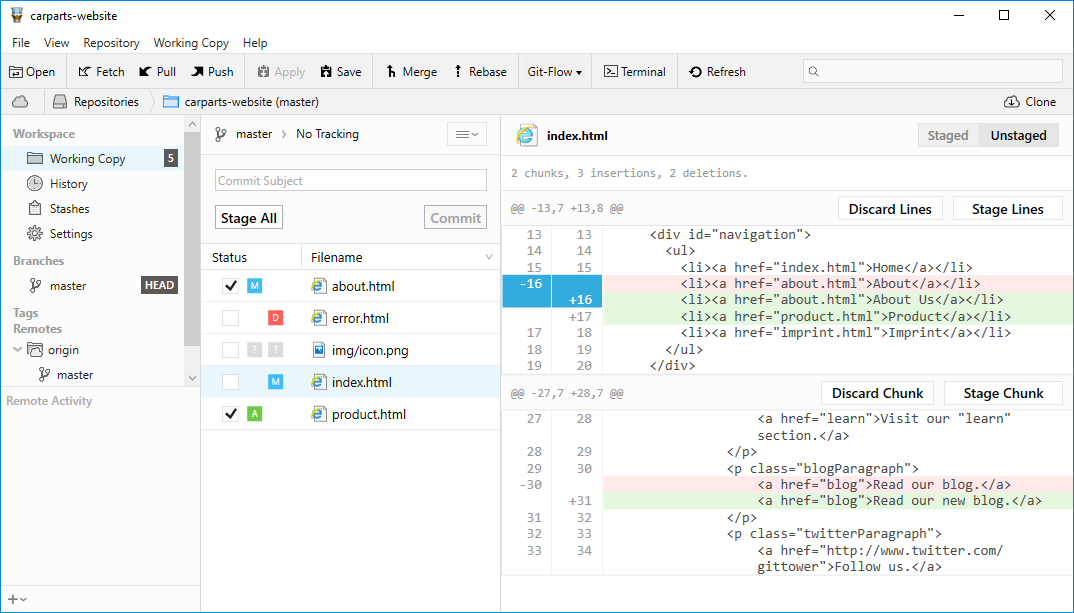
Use all of Git's powerful feature set - in a GUI that makes you more productive


Git for Windows

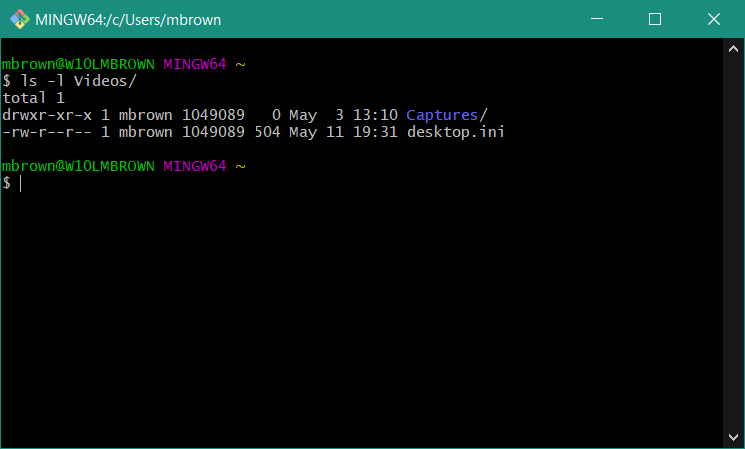
https://gitforwindows.org/ aka https://git-scm.com/ eg command line

Git for Windows command line client


TortoiseGit
https://tortoisegit.org/

TortoiseGit provides overlay icons showing the file status, a powerful context menu for Git and much more


Git Extensions

https://gitextensions.github.io/

Git Extensions is a standalone UI tool for managing Git repositories


GitKraken

https://www.gitkraken.com/

Unleash GitKraken! This intuitive Git GUI simplifies and streamlines Git processes


GitHub Desktop
https://desktop.github.com/

GitHub Desktop simplifies your development workflow


-End of Document-
Thanks for reading

Monday, July 19, 2021

Git Hooks

Git hooks are shell scripts that run automatically before or after Git executes an important command like Commit or Push.  They can be used to enforce conventions around git actions, such as branch names and commit messages.

Git hooks reside in .git/hooks. To enable a hook, just remove the .sample extension

Git HookGit CommandDescription
applypatch-msg.samplegit amWhen a patch message is changed
commit-msg.samplegit commitTo set the message of a commit action
fsmonitor-watchman.samplelaunch watchmanTo integrate watchman
post-update.samplegit pushBy updating all data after the push
pre-applypatch.samplegit amBefore applying a patch
pre-commit.samplegit commitBefore committing
prepare-commit-msg.samplegit commitWhen a commit message is set
pre-push.samplegit pushBefore making a push
pre-rebase.samplegit rebaseBefore making a pass or merge
pre-receive.samplegit pushWhen we push and get the data from the remote repository
update.samplegit pushBy updating the remote data in a push

Reference: https://www.hostinger.com/tutorials/how-to-use-git-hooks/


While the directory .git/hooks is not version controlled, you can update your git hooks location to a versioned directory, such as .githooks

> git config core.hooksPath ./.githooks

Note: IntelliJIDE does not support custom hook locations, nor prepare-commit-msg
But you can use the plugin Git Commit Message Template w/ a matching regex such as #?[0-9]{6,10}


Branch Names
Having a common naming convention for branches can make it easier to determine what a branch is being used for.

Something like
ticket#-ShortDesc
123123-AddAuditLog
is more useful than 
addmorestuff
as you can at least track back the branch back to the originating ticket

The git hook pre-commit can be used to enforce branch names

File pre-commit:
#!/usr/bin/env bash

local_branch="$(git rev-parse --abbrev-ref HEAD)"

#valid_branch_regex="^(feature|bugfix|improvement|library|prerelease|release|hotfix)\/[a-z0-9._-]+$"
valid_branch_regex="^#?[0-9]{6,10}-[a-zA-Z]+$"

error()
{
  echo "GIT PRE-COMMIT HOOK ERROR:"
  echo "$1"
  echo ""
  echo "Your commit will be rejected."
  echo "You should rename your branch to a valid name and try again."
  exit 1
}

if [[ ! $local_branch =~ $valid_branch_regex ]]
then
  error "Branch names must match: $valid_branch_regex."
fi

exit 0


gist

Commit Messages
As git tends to intermingle commits from different branches based on time, you can also enforce comments to contain ticket numbers too.  

Something like
ticket# added audit log

as you can at least track back the commit back to the originating ticket
In general, you should try to make multiple commits grouped by concept, and commit every day or two.

The git hooks prepare-commit-msg and commit-msg
can be used to enforce ticket numbers in commits

File prepare-commit-msg:
#!/usr/bin/env bash

# commit message file
commit_msg_file="$1"
# condition the commit is invoked; none (git commit), message (git commit -m <msg>), template, merge, squash, or commit
# commit_source=$2
# commit hash
# sha1=$3

local_branch="$(git rev-parse --abbrev-ref HEAD)"
get_ticket_nbr="^#?([0-9]{6,10}).*"
valid_ticket_nbr="^[0-9]{6,10}$"

error() 
{
  echo "GIT PREPARE-COMMIT HOOK ERROR:"
  echo "$1"
  echo ""
  exit 1
}

# check if commit message already has the ticket # prepended
# if not, try to prepend
commit_msg=$(cat "$commit_msg_file")
if [[ ! $commit_msg =~ $get_ticket_nbr ]]
then
  if [[ $local_branch =~ $get_ticket_nbr ]]
  then
    ticket="${BASH_REMATCH[1]}"
    if [[ $ticket =~ $valid_ticket_nbr ]]
    then
      echo "#${ticket} " > "$commit_msg_file"
      echo "$commit_msg" >> "$commit_msg_file"
    fi
  fi
fi

exit 0


gist 


File commit-msg:
#!/usr/bin/env bash

# commit message file
commit_msg_file="$1"

valid_comment_prefix="^#?[0-9]{6,10} .+"

error() 
{
cp "$commit_msg_file" "_gitmsg.saved.txt"

echo "GIT COMMIT-MSG HOOK ERROR:"
echo "$1"
echo ""
echo "Original checkin message has been stored in '_gitmsg.saved.txt'"
echo "Your commit will be rejected."
echo "You should update your commit and try again."

exit 1
}

commit_msg=$(cat "$commit_msg_file")
if [[ ! $commit_msg =~ $valid_comment_prefix ]]
then
  error "Comment must match: $valid_comment_prefix"
fi

exit 0

gist


Note: hooks can be tested using 
> bash .githooks\prepare-commit-msg test.txt


You should now have some ideas on how to enforce some consistency in your git actions.

-End of Document-
Thanks for reading

Monday, October 26, 2020

Git Feedback Branches

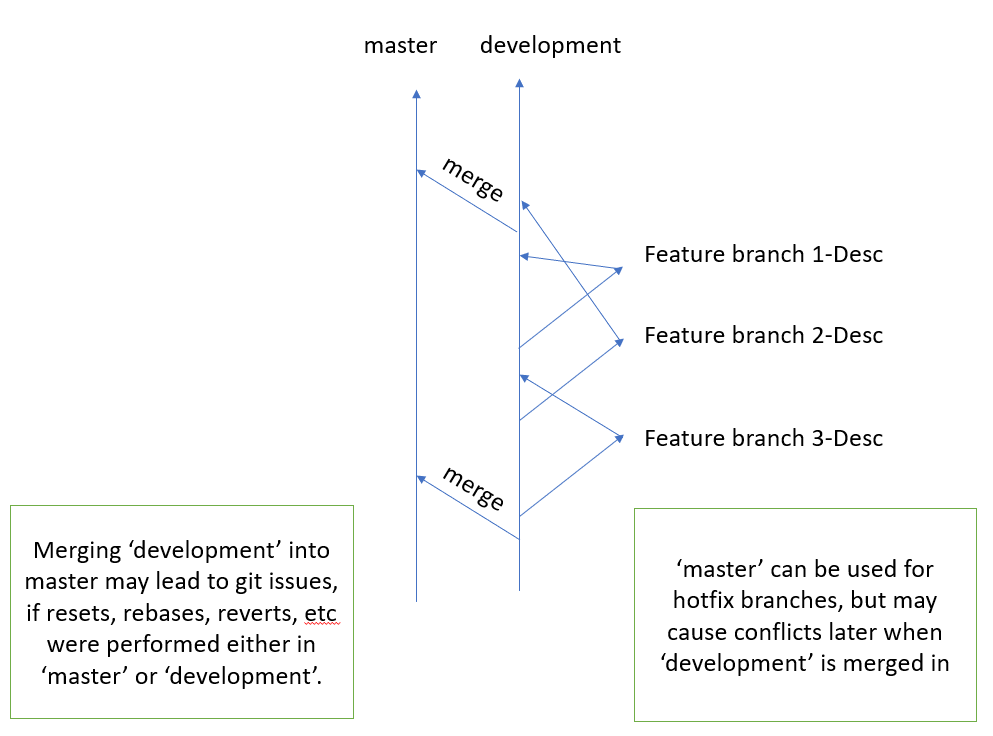
Most Git workflows do not address picking what is released. Once a feature branch has been merged back to 'development', it is in the release pipe, pending QA and Business validation. Once in 'development', code/branches cannot easily or arbitrarily be plucked out to go directly to production as the code is often intermingled with other branches. But the code changes in 'development' can be manually re-coded (Git patches help) into a hotfix branch from 'master'/'production' with the risk of not being QA-ed.

The 'Git single branch strategy' primarily removes the pain point of the conflicts between 'master' and 'development', while providing a clearer history of production releases, and an easier rollback with switching branches.

Generally picking what to release is largely mitigated by how, and the order in which Tickets are chosen. However, the release pipe can be slowed down by a Ticket/branch needing time to fix, or be validated by QA or Business. To remove the blocking branch, depending on the changes, the feature could be hidden, or removed if a small change, or more likely wait for the fix(es) and QA.
Hopefully the upfront choosing of Tickets and quality of specifications somewhat mitigates the blockers.

Some Git strategies to mitigate blockers in the release pipe, which are caused by Tickets that often require feedback once seen.

 1) Put less in the release pipe: (Less is more)
If limit releases to one branch per release, then there is no re-picking once in 'development'. Basically the other feature branches would queue up waiting to be picked and for merge to 'development' and QA-ed. Which leads to the pros and cons of Staging branches.

 2) Staging branches:
Another process to maybe help with picking branches for release is to not merge feature branches back to 'development' until picked. The feature branches could be deployed to their own directory (devsite.com/branch/123-shortdesc) be QA-ed, reviewed by Business, then if ok, merged to 'development'. Then when decided to go to production, everything currently in 'development' is QA-ed again, fixes added via branch updates or a new branch, and then released via 'master'/'production'.
Note, if after being merged to 'development', production release decisions change, well, then we are back to the same problem of doing hotfixes, or hiding not ready functionality, or waiting for the fixes.
Also this approach can be a burden on the developers: fixes enhancements, code cleanups, won't be seen or utilized until the branch is picked, and those fixes/enhancements might be required or desired for another branch, thus duplication of code which probably means conflicts later. Before merging the feature branch to 'development', 'development' would need to be merged back to the feature branch to handle any changes or conflicts in the branch, so the developer can test again before merging to 'development'. And as the code won't be fresh on the developers mind, there is a higher risk of mistakes to be made during the merge to 'development'.

pros:
  • able to preview branches before release
  • able to choose branches for release
cons:
  • more work for Business and/or QA as the merged branches in ‘development’ still need to be reviewed
  • if decisions change to remove a branch or hotfix a branch to production before qa, same problems
  • more burden on developers, potential conflicts, developing the branch twice: once orig, then later (days, weeks) when picked
  • dev-ops + some app work to make 'their own directory' happen

Committing often, merging often seems to be better for code quality.

3) Feedback branches, Preview branches: (A hybrid of Staging branches)
For branches which require Business or early QA feedback, after development is done, but before QA or merging to 'development', push the branch to a preview location (devsite.com/branch/123-shortdesc). There it can be previewed for one or two days, before being merged to 'development' and moved to QA; required feedback branches should not be held for a long time, else the cons of Staged branches may become apparent. The branches that require feedback should be marked as such before development. Every branch should not be marked as requires feedback, only a few should be.

pros:
  • able to preview branches marked as feedback before release
  • should reduce fixes needed when in 'development' for QA
  • as only a day or two delay, no large time incurred burden on developers
cons:
  • does not allow changing order of released branches
  • more work for Business and/or QA as the merged branches in ‘development’ still need to be reviewed
  • if decisions change to remove a branch or hotfix a branch to production before QA, same problems
  • dev-ops work + some app work to make 'preview location' happen


Hopefully some useful Git strategies when dealing with Tickets that often require feedback once seen.

-End of Document-
Thanks for reading

Monday, October 19, 2020

Git single branch strategy

A common Git workflow has two main branches, 'development' and 'master'. With the common workflow of creating feature branches from ‘development’, merging the feature branch back to ‘development’, and then for a release to production, merging 'development' to 'master'. Non-trivial conflicts can occur during the merge to 'master' when same/similar changes are made in both 'master' and 'development', or 'development' has had some necessary reverts or other changes.

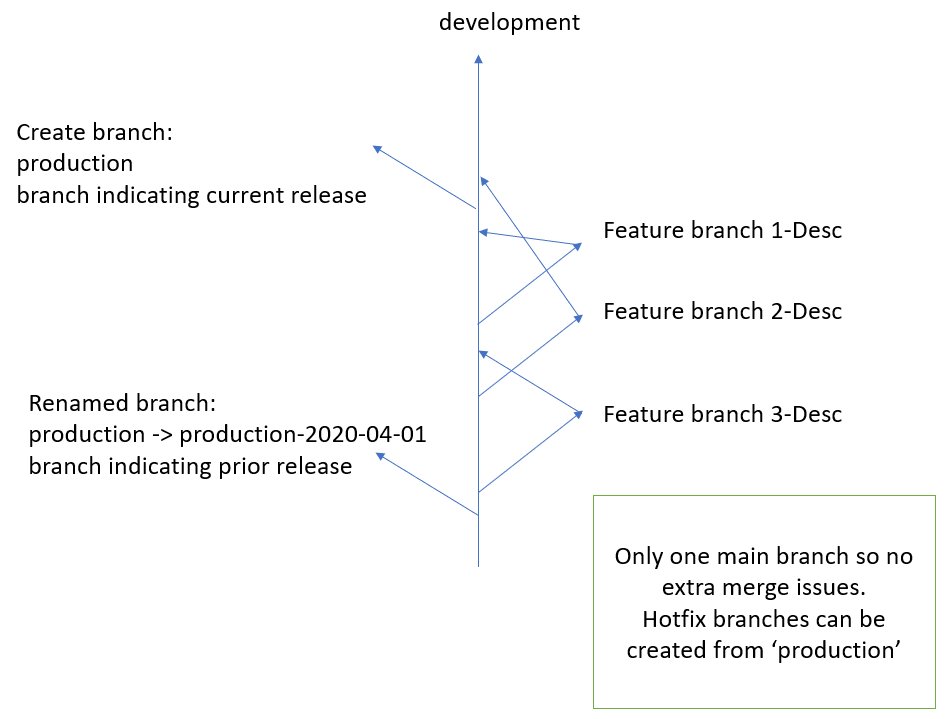
Instead of having two main or long lived branches, another idea for a Git workflow is to use only one main branch, then create a branch for production pulls.
aka 'trunk-based development workflow' or 'single branch strategy'

Think of the one main branch as the 'development' branch
  • flow for development would be the same:
    • branch from 'development' for a Ticket, merge request to 'development' when done
  • when want to do a release to production, instead of a merge request to 'master'
    • create a new 'production' branch at the last or desired 'development' commit
  • when want to do another release to production
    • rename current 'production' to 'production-date' ie 'production-20200531'
    • create a new 'production' branch at the last or desired 'development' commit
  • 'master' branch would then be unused and eventually removed
    • current purpose of 'master' is: 
      • release this code, which will be the purpose of 'production'
  • 'development' is never merged into 'production'
  • overtime, like feature branches, old 'production-date' branches can be deleted


pros:
  • never any conflicts between 'master' eg 'production' and 'development', as only one main branch
  • hotfixes can be applied to current 'production' branch without worry of later conflicts
  • 'production-date' can be used as a rollback for code in case a release is non usable/broken and code related
cons:
  • no 'master' branch; but 'production' and 'development' are more explicit
  • no merge request to 'master'; 'production' and 'production-*' can be marked as a protected branches in GitLab
  • slightly different
GitLab CI/CD:
  • should still work at creation of 'production',
  • and maybe the renaming of 'production-date' and creation of 'production' could be part of the GitLab CI/CD
Tags:
An alternative to creating 'production' branches would be to create 'production' tags. If a hotfix is needed, then create a branch from the tag. But just keeping everything a branch simplifies: GitLab CI/CD, Git UIs, merge request for hotfix, etc

And yes, the one branch to rule them all could be named the default Git repo branch name of ‘master’. Or 'sam', or whatever your group agrees upon, and you can tell others.


-End of Document-
Thanks for reading
Monday, May 11, 2020

GitLab Deploy Keys and Deploy Tokens

GitLab is a web-based DevOps lifecycle tool that provides a Git-repository manager providing wiki, issue-tracking and CI/CD pipeline features, using an open-source license, developed by GitLab Inc.

Both Deploy Keys and Deploy Tokens allow you to checkout code without using your personal GitLab username/password.  And as their name indicates, they are best suited for deployments, usually automated/scripted. What are their features?

Deploy Keys
  • Utilize SSH keys (public and private)
  • Checkout via SSH (requires port 22 open)
  • GitLab will store the public SSH key
  • The server doing the checkout will have to have the private SSH key
  • Allows read and/or write of repository
  • More steps for setup
Deploy Tokens
  • Use a generate once password ie token
  • Check via HTTPS (requires port 443 open, more common)
  • Token can have an expiration date
  • Allows read only of repository
  • Simpler setup

How to create and use Deploy Keys (SSH)


By default, when you use SSH, it reads from ~/.ssh/id_rsa
But that is your personal SSH key

Create a SSH key for GitLab deployments with a unique name
Login to the server where you will clone/deploy your code
> ssh-keygen -t rsa -b 4096 -f ~/.ssh/gitlab_deploy_rsa

Tell ssh about the new gitlab key
> vim ~/.ssh/config
Host gitlab.yourdomain.com
  Preferredauthentications publickey
  IdentityFile ~/.ssh/gitlab_deploy_rsa

Note: for the Host, use the host GitLab references
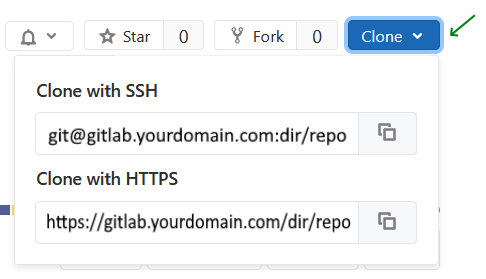
GitLab: Repo: Clone button
git@gitlab.yourdomain.com:dir/repo.git

For security, and to allow SSH, make the config read only by you
> chmod 600 ~/.ssh/config

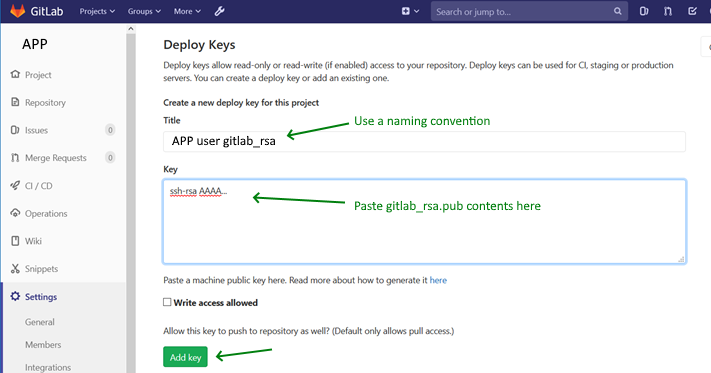
So GitLab knows about your new key, create a GitLab Deploy Key

GitLab: Repo: Settings -> Repository, scroll to Deploy Keys
Copy the contents of your public key ~/.ssh/gitlab_rsa.pub to the Key section

Back on your server,
Test that SSH access works
> ssh -vT git@gitlab.yourdomain.com
-T Disable pseudo-terminal allocation ie just give return result "as is"
-v verbose

If SSH times out, try a public site to ensure port 22 is open
> ssh -vT gitlab.com

If SSH gitlab.com does not work, then enable port 22 on your server, most likely via it's firewall.
If SSH gitlab.com does work, then maybe SSH is not enabled or accessible on your GitLab server. Review your GitLabs firewall ie iptables, tcp wrappers ie /etc/hosts.deny and /etc/hosts.allow, and the SSH daemon configuration ie /etc/sshd_config

Assuming
> ssh -vT git@gitlab.yourdomain.com
finally works

You should be able to checkout your code using SSH, using
> git clone git@gitlab.yourdomain.com:dir/repo.git target_dir
which is a slight shorthand for
> git clone ssh://git@gitlab.yourdomain.com/dir/repo.git target_dir

Note: If you cannot get SSH working, you can try using Deploy Tokens, which uses HTTPS, which is more often accessible.

How to create and use Deploy Tokens (HTTPS)


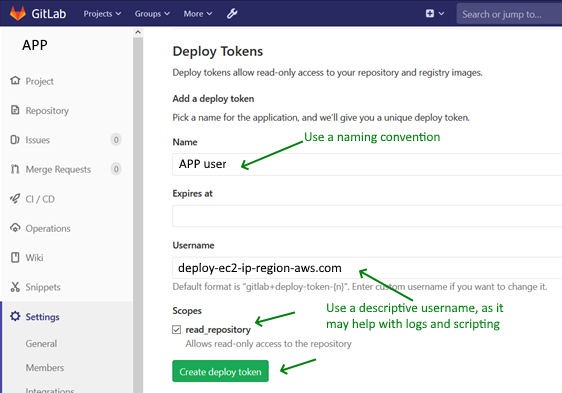
Create a GitLab Deploy Token

GitLab: Repo: Settings -> Repository, scroll to Deploy Tokens
 

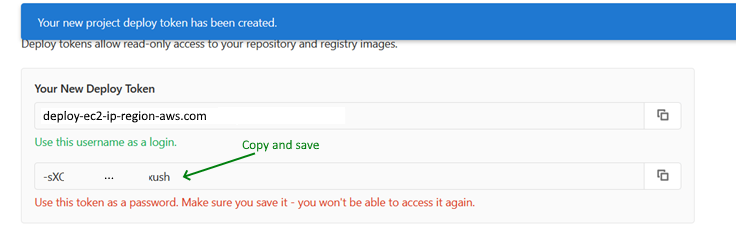
After creating the Deploy Token, make sure to copy and save the token
 

From your server, you can checkout your code using
> git clone https://<username>:<token>@gitlab.yourdomain.com/dir/repo.git target_dir

After cloning, you can simply Pull changes
> git pull

So, should you use SSH or HTTPS?
Ideally you should use SSH keys as they are a way to identify trusted computers, without involving passwords, but HTTPS is the easiest to set up on the widest range of networks and platforms.


-End of Document-
Thanks for reading


Friday, November 8, 2019

Merge multiple git repositories into one repository

Sometimes you may have multiple code repositories which you always end up checking out together, and deploying together.  Or maybe it seemed like a good organization idea to separate your code based on functionality, but in practice, it has become cumbersome.

With a few commands, you can merge the multiple repositories into one repository, keeping their history.  You can also keep the separate repositories in their own sub directory, thus maintaining the organization of your code, but utilize one repository to facility development, branches, and deployments.

Example list of current separate repositories:
    ls 
    /local_git/old_project_1
    /local_git/old_project_2
Update your local repositories with the latest code
Pull and Commit/Push any changes

Create a new repository for the combined project and push
    cd /local_git
    mkdir new_combined_project
    touch README.md
    git init .
    git commit -m "add readme"
    git remote add origin remote https://github.com/your_repo_url
    git push

Add the first separate repository to the new combined repository
    cd /local_git/new_combined_project
    git remote add old_project_1 ../old_project_1

List repositories
    git remote -v    

    old_project_1  ../old_project_1.git (fetch)
    old_project_1  ../old_project_1.git (push)
    origin  https://github.com/your_repo_url.git (fetch)    origin  https://github.com/your_repo_url.git (push)
 
Note: If you get the wrong path to your local repository, you can remove repository entries
    git remote remove old_project_1

Fetch the branch/tags/master for the first separate repository
    git fetch old_project_1 --tags

Merge the files and histories for the first separate repository
    git merge --allow-unrelated-histories old_project_1/master
    list of files

You should have a list of files and directories from the first separate repository
    ls
    your files from old_project_1


Optionally create a sub directory to move the files into.
    cd /local_git/new_combined_project
    mkdir old_project_1
 
Move the files and folders into the new nested directory
    git mv !(old_project_1|old_project_2) old_project_1

Note: If you just mv or cut/paste the files into the new directory, git may not persist the history for those files.

Note: !() excludes the listed directory/file

Note: If you get an error about unknown bash command !, enable the glob extension
    shopt -s extglob

Your directories/files from the first separate repository should now be in
    /local_git/new_combined_project/old_project_1
and you should have the git history for old_project_1

Consolidated commands repeating for the second separate repository
    cd /local_git/new_combined_project
    ls
    git remote add old_project_2 ../old_project_2
    git remote -v
    git fetch old_project_2 --tags
    git merge --allow-unrelated-histories old_project_2/master
    mkdir old_project_2
    git mv !(old_project_1|old_project_2) old_project_2
    ls
    ls old_project_2

Your multiple separate repositories are now merged into one repository, with their history.  After verifying by checking out to a new directory, viewing it's history, you can remove the prior separate repositories.

Reference: https://stackoverflow.com/a/10548919


-End of Document-
Thanks for reading

Friday, October 11, 2019

NodeJS Configuration per Environment

Dotenv is a zero-dependency module that loads environment variables from a .env file into process.env. Storing configuration in the environment separate from code is based on The Twelve-Factor App methodology.
Reference: https://github.com/motdotla/dotenv

While you can use NodeJS Dotenv to manage configurations per environment,
another approach is to create a configuration per environment, and use an environment based file to distinguish which configuration to use. 
Why? 
It is useful to actually version control your configuration, so every developer and every instance of your application has the same configuration keys and values.

An example of how to setup a production and staging environment follows.

Create the environment file as root to minimize the odds of the environment being removed or changed

> cd /home/yuourapp/
> sudo touch env-prod

> cd /home/yuourappstg/
> sudo touch env-stg


Helper scripts to start and restart your NodeJS Forever service

Note: [ -f "env-stg" ] returns true if the file exists

> start-yourapp.sh
#!/bin/bash

if [ -f "env-stg" ]; then
    forever start -a --minUptime 1000 --spinSleepTime 2000 --uid yourapp-stg yourapp.js
else
    forever start -a --minUptime 1000 --spinSleepTime 2000 --uid yourapp yourapp.js
fi


> restart-yourapp.js
#!/bin/bash

if [ -f "env-stg" ]; then
    forever restart yourapp-stg
else
    forever restart yourapp
fi


Create a configuration file per environment, ensuring that each configuration has the same keys, and varying the values as appropriate.

> config/config-stg.js
module.exports = {
port : 9011,
log : {
console : { level : 'silly' }
}
};

> config/config-prod.js
module.exports = {
port : 9001,
log : {
console : { level : 'error' }
}
};


Create a base configuration script to read in the appropriate configuration file

An example for a NodeJS process
> config/config.js
const path = require('path');
const fs = require('fs');

let env;
// check for env-stg or env-prod file
if (fs.existsSync('env-stg')) {
env = 'stg';
} else {
env = 'prod';
}
const configPath = path.resolve(process.cwd(), `config/config-${env}`);
const config = require(configPath);
// visual validation of correct env
console.log('Using config ' + configPath);
module.exports = config;


An example for a VueJS/Nuxt process

Due to VueJS/Nuxt being a browser based solution,
to avoid warnings and errors, create another env file to be required

> sudo vi env
module.exports = {
    env: 'stg'
}

Add configuration as needed
> nuxt.config-stg.js
module.exports = {
server: { port: 9013 },
};

> nuxt.config-prod.js
module.exports = {
server: { port: 9003 },
};

Create a base configuration script to read in the appropriate configuration file.
> nuxt.config.js
const path = require('path');

// check for env file
let env;
try {
// (base)/
// require ('./env-stg');
// using exports, as when require from .vue, build causes warning 'Module not found: Error: Can't resolve './env-stg''
env = require ('./env');
env = env.env;
} catch (e) {
// default prod
env = 'prod';
}

// check for env based nuxt config when called from different relative paths
let configPath;
let config;
try {
// (base)/
configPath = `./nuxt.config-${env}.js`;
// config = require(configPath); // on build, results in warning 'Critical dependency: the request of a dependency is an expression'
config = require(`./nuxt.config-${env}.js`);
} catch (e) {
try {
// (base)/server/
configPath = `../nuxt.config-${env}.js`;
config = require(`../nuxt.config-${env}.js`);
} catch (e) {
// (base)/pages/dir/
configPath = `../../nuxt.config-${env}.js`;
config = require(`../../nuxt.config-${env}.js`);
}
}

// visual validation of correct env
console.log('Building nuxt using ' + configPath);
module.exports = config;

Now you can check in the configuration files, but do not check in the .env and env-stg, env-prod files (add them to .gitignore), as those should vary based on the deployed environment.


-End of Document-
Thanks for reading
Monday, February 12, 2018

git and line endings, .gitattributes

If you develop in Windows, and deploy to Linux, and use git,
you may run into issues where Linux configuration files end up with Windows new lines ie carriage return and new line ie \r\n, thus preventing your Linux configuration from working.

Note: Check if you have the default git option of config.autocrlf=true set, or are required to by your company policy.

To keep your Linux configuration files 'clean' with just new lines ie \n
you can override certain directories or files to use a specific line ending, such as \n.
Git provides additional settings by placing a file named
.gitattributes
in either your code repository root, or in a subdirectory.

Note: Windows explorer will not allow you to create a dot file ie .gitattributes or .htaccess
You can copy an already created or downloaded file, and edit it, or from the command line
> echo > .gitattributes
or
> rename newdocument.txt .gitattributes

To let Git handle the automagic line endings conversion for you, on commits and checkouts. Binary files won't be altered, files detected as being text files will see the line endings converted on the fly.
> echo .gitattributes
* text=auto

You can also add additional criteria to specify whether a file is text, thus auto convert line endings, or binary, do nothing.
> echo .gitattributes
# text; auto convert line endings
*.txt text
*.h text

# binary; do not do anything
*.jpg binary
*.data binary

You can also ensures that all files that match a pattern have normalized line endings in the repository by adding a eof property; eof can be lf or crlf
> echo .gitattributes
# Ensure shell and conf files use LF.
*.sh         eol=lf
*.conf       eol=lf
*.bash       eol=lf

A large example of .gitattributes on GitHub

End of document. Thanks for reading.

Monday, February 5, 2018

git and line endings, core.autocrlf

Ah line endings; \r\n vs \n
Some OSes, such as Windows, prefer carriage returns and new lines: (\r\n)
While others, such as Linux and Mac, prefer new lines: (\n)

This default preference is not a problem, until you start sharing code across OSes using a version control system, like git.

For example, if your Windows ide enters \r\n for new lines, or worse, on save converts all lines to \r\n, while another developer's Linux ide enters \n for new lines, and also on save converts all lines to \n, the version control system will mark all affected lines as changed, when really it was just line endings.

To minimize the unintentional changing of line endings:
1) Developers can agree on the desired line ending and adjust their ide to save as such.
The desired line ending often depends on whether the target OS for the code is Linux or Windows, matching the OS preference.
2) Git by default can help manage line endings on commits and checkouts, by setting the config flag:
core.autocrlf

config.autocrlf=true
If you’re programming on Windows and working with people who are not (or vice-versa), you’ll probably run into line-ending issues at some point. This is because Windows uses both a carriage-return character and a linefeed character for newlines in its files, whereas Mac and Linux systems use only the linefeed character. This is a subtle but incredibly annoying fact of cross-platform work; many editors on Windows silently replace existing LF-style line endings with CRLF, or insert both line-ending characters when the user hits the enter key.
Git can handle this by auto-converting CRLF line endings into LF when you add a file to the index, and vice versa when it checks out code onto your filesystem. You can turn on this functionality with the core.autocrlf setting. If you’re on a Windows machine, set it to true – this converts LF endings into CRLF when you check out code:
> git config --global core.autocrlf true

config.autocrlf=input
If you’re on a Linux or Mac system that uses LF line endings, then you don’t want Git to automatically convert them when you check out files; however, if a file with CRLF endings accidentally gets introduced, then you may want Git to fix it. You can tell Git to convert CRLF to LF on commit but not the other way around by setting core.autocrlf to input:
> git config --global core.autocrlf input

This setup should leave you with CRLF endings in Windows checkouts, but LF endings on Mac and Linux systems and in the repository.
config.autocrlf=false
If you’re a Windows programmer doing a Windows-only project, then you can turn off this functionality, recording the carriage returns in the repository by setting the config value to false:
> git config --global core.autocrlf false

Note: Above 2) sourced from Git Book

This is the recommended option if you want to manage line endings yourself; no magic = good

Note: You can also manually edit the git global config by editing the file in
> echo C:\Users\[username]\.gitconfig

[user]
name = first last
email = your@email.com
[core]
autocrlf = true

   
Further reading on StackOverflow

End of document.  Thanks for reading.