DDEV
"DDEV is an open source tool for launching local [PHP, Python,
NodeJS, etc] development environments in minutes. These environments can be
extended, version controlled, and shared, so you can take advantage of a Docker
workflow without Docker experience or bespoke configuration. Projects can be
changed, powered down, or removed just as easily as they’re started."
GitHub
| Docs
Terminology:
- host os
(windows/macosx/linux)
- docker os
(linux vm)
- containers
(linux)
General flow of ddev tech stack
[ddev, on host os] -> [docker compose -> docker, in linux vm] ->
[containers, linux, managed by docker]
Install DDEV and related tools
Follow the install steps for your OS
https://ddev.readthedocs.io/en/stable/
Before running any external shell or powershell scripts, read the install
script for your OS.
Prerequisites:
Windows
- Recommended:
use wsl2 and docker desktop, docker ce inside wsl (do your work mostly in
windows)
- Alternative:
use wsl2, docker ce inside wsl (do your work mostly in wsl/linux)
- Alternative:
use virtual box, docker ce inside virtual box (do your work mostly in
virtual box/linux)
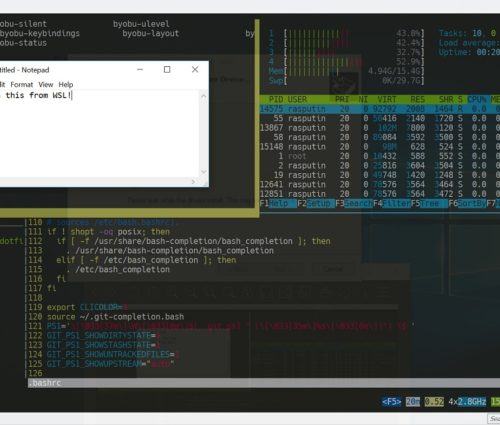
Windows ides can access files in wsl2, but ide operations will be slower
due to the different filesystems. Within wsl, for performance, do not reference
files by /mnt/c/home/dev, instead use the linux file system, eg /home/dev or ~/
Install, update wsl
https://learn.microsoft.com/en-us/windows/wsl/install
https://learn.microsoft.com/en-us/windows/wsl/basic-commands
The ddev install uses chocolatey, a package manager for windows https://community.chocolatey.org/
Tip: Before installing ddev, you may want to change the default chocolatey tools
install directory.
By default chocolatey installs itself to C:\ProgramData\chocolatey and installs tools to C:\tools\ (not great)
In an admin powershell, run:
[System.Environment]::SetEnvironmentVariable('ChocolateyToolsLocation','C:\ProgramData\ChocolateyTools',
'User')
Installing docker desktop may require a logout/reboot.
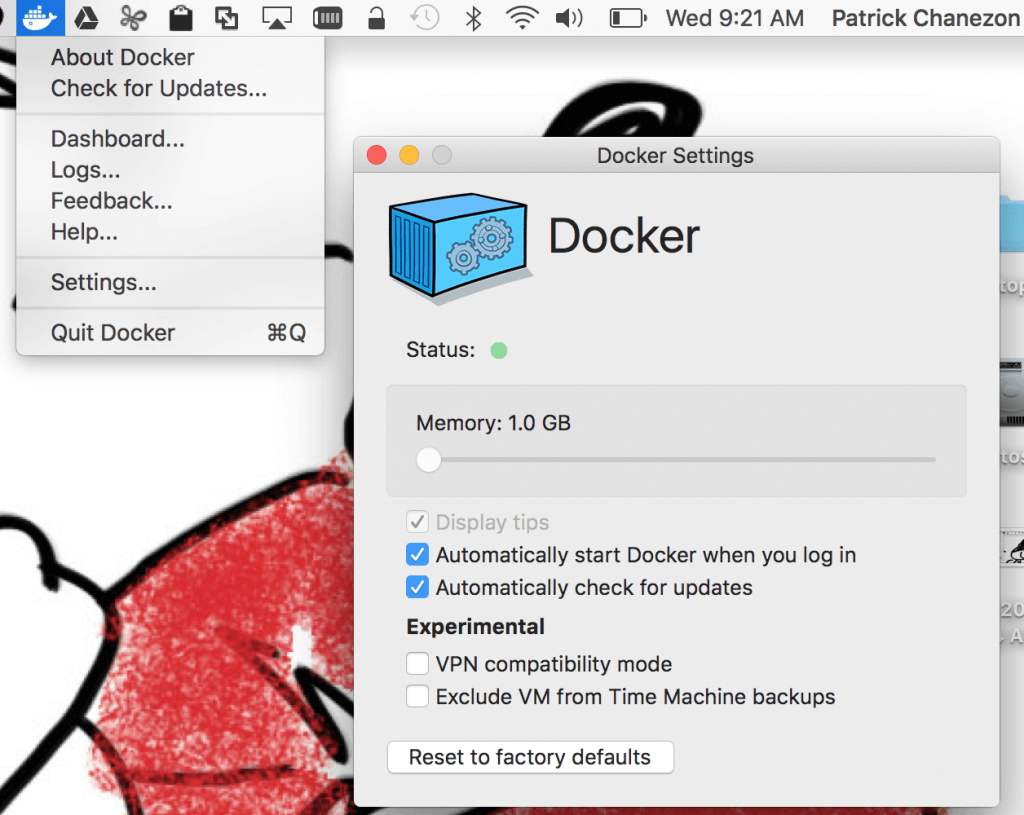
Ensure docker desktop is using wsl2, launch docker desktop
configure gear icon -> general -> use wsl2 based engine; resources ->
wsl integration
You shouldn't need to directly access docker desktop when using ddev.
MacOSX
- Recommended:
use colima, docker ce inside colima linux os (do your work mostly in
macosx)
- Alternative:
use docker desktop, docker ce inside docker desktop linux os (do your work
mostly in macosx)
- Alternative:
use virtual box, docker ce inside virtual box (do your work mostly in
virtual box/linux)
You shouldn't need to directly use colima when using ddev.
Linux
- Recommended:
docker ce
- Alternative:
use docker desktop
DDEV Configuration
local config
a local config file can be used to merge with the main ddev config in
.ddev/config.yaml
examples:
.ddev/config.local.yaml
hooks:
post-start:
- exec-host: echo -e "checking bootstrapping via
\033[1;34mhttp://${DDEV_HOSTNAME}/ping\033[0m"
- exec-host: curl http://your-repo.ddev.site/ping
- exec-host: echo -e ""
ddev generated files
useful to see the docker config created by ddev.
do not edit as they will be re-generated on next start
.[dot folders]
.ddev-docker-compose-base.yaml
.ddev-docker-compose-full.yaml
Related DDEV Utilities
mkcert
mkcert is a simple tool for making locally-trusted development certificates. eg
allows local https without browser warnings
https://github.com/FiloSottile/mkcert
firefox
The non chrome browser
https://www.mozilla.org/en-US/firefox/new/
for ssl access to ddev sites, import the mkcert generated ca cert
- list CA
location, > mkcert -CAROOT
- in firefox url,
about:preferences#privacy
- filter,
certificates
- View
Certificates -> Authorities -> Import
- Select the
rootCA.pem file
- find the
imported cert in the list, find mkcert
- click Edit
Trust, click enable for websites
ngrok
ngrok is a reverse proxy that creates a secure tunnel from a public endpoint to
a locally running web service eg expose a local server behind a NAT or firewall
to the internet
https://ngrok.com/
chocolatey
a package manager for windows
- opensource https://community.chocolatey.org/
- install https://chocolatey.org/install
- gui https://docs.chocolatey.org/en-us/chocolatey-gui/setup/installation
docker
container management docker ce is opensource, docker desktop is a subscription
https://docs.docker.com/engine/install/ubuntu/
mutagen
mutagen provides real-time file synchronization and flexible network forwarding
for developers, extending the reach of local development tools to cloud-based
containers and infrastructure. initial file sync can take a bit https://mutagen.io/
maxosx and windows:
Accessing lots of files between the host os and linux os can be slow due to the
different filesystems. mutagen will perform a two-way sync between your os and
the ddev managed docker container.
https://ddev.readthedocs.io/en/stable/users/install/performance/#mutagen
traefik
dddev routing ddev-router has been based on a forked, poorly-documented nginx
reverse proxy. Versions after DDEV v1.21.3 add a new router based on the
popular Traefik Proxy.
https://ddev.readthedocs.io/en/latest/users/configuration/experimental/#traefik-router
https://traefik.io/traefik/
podman
container management, opensource, compatible with docker
https://podman.io/
phpstorm
php, code ide
https://www.jetbrains.com/phpstorm/
a ddev plugin exists for phpstorm and webstorm, which can facilitate setting up
xdebug, server, php config, stop/start ddev, etc
https://ddev.readthedocs.io/en/latest/users/install/phpstorm/#phpstorm-basic-setup-on-windows-wsl2
using ddev from the command line may be simpler and more consistent
vscode
code ide
https://code.visualstudio.com/
General ddev, docker, and container
tips
- manage ddev
within the host windows/macosx os, and if needed manage docker ce via the
cli within the linux vm (wsl for windows)
- one container
per repo
- changes inside
container will not persist, as it is a container
- any changes
need to be made outside of container (code), or to ddev config (container
services, config)
- ddev
configuration is stored in the relative directory .ddev/
- to facilitate
ddev updates, try to keep config changes to a minimal
- start project
> ddev start
initial file sync can take a bit - stop project
> ddev stop - project details
> ddev status
> ddev describe - list docker
images
inside linux host
> docker ps - show all
projects
> ddev list - stop all
containers
> ddev poweroff - restart a
project
often used after making .ddev config changes
> ddev restart - ddev images are
debian based
ssh into container to test or view config
reminder, changes inside container will not persist
> ddev ssh - control
processes, php-fpm, nginx, node
ddev uses supervisorctl to control processes, as opposed to systemctl; inside linux host
> supervisorctl restart php-fpm
> supervisorctl restart nginx
note, if a process dies or attempts to restart several times due to bad config, the container will stop. - start npm run
start command
> ddev npm run start - stop npm run
start command
> ddev npm run stop - run phpstan
> ddev composer phpstan - view logs from
host os
> ddev logs - view logs
inside container
> ddev ssh
> vi [log]
> tail -f [log] - docker
maintenance
Sometimes, either due to bad ddev, docker, wsl, comila, or normal config/docker changes, you may end up with unused, disconnected images, containers.
To clean up your system, and recover some storage; inside your linux host
> docker system prune - if ddev
container won't start after config changes
Fix or revert config changes, then
> ddev restart
"generally removes most things that need to be removed"
> ddev poweroff
> ddev rm -a - if start
multiple ddev containers at the same time, there may be port conflicts as
they may try to grab the same 'random' or initial default port; either
restart failed container, or add a pause between container starts
- check open
ports in linux host
> ss -l