Tuesday, March 28, 2023

Debug ReactJS with WebStorm

Instead of using console.logs, WebStorm can be used to debug your development builds of your React app. You can set breakpoints, and inspect your apps in real-time, greatly expediting and simplifying your debug experience.
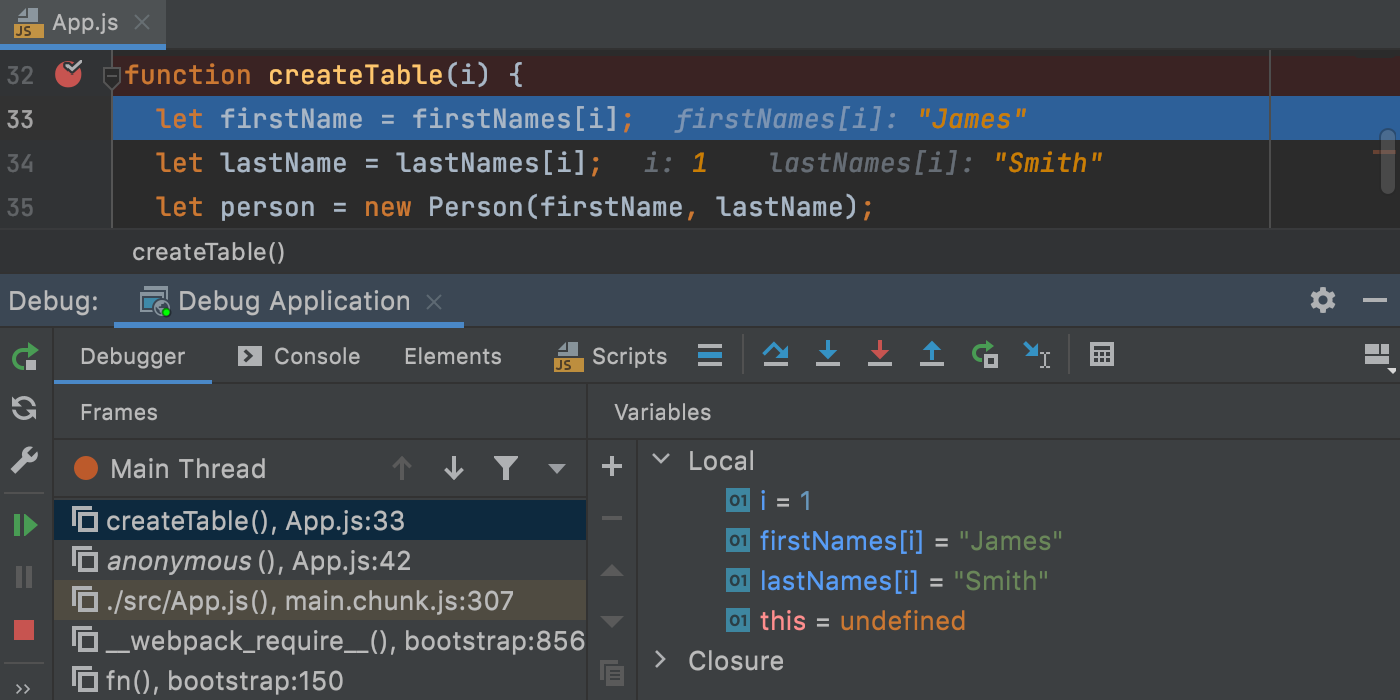


WebStorm is an integrated development environment for JavaScript and related technologies. Like other JetBrains IDEs, it makes your development experience more enjoyable, automating routine work and helping you handle complex tasks with ease.

source: https://www.jetbrains.com/webstorm/


React is a declarative, efficient, and flexible JavaScript library for building user interfaces. ReactJS is an open-source, component-based front-end library responsible only for the view layer of the application. React is used to create modular user interfaces. It promotes the development of reusable UI components that display dynamic data.

source: https://www.geeksforgeeks.org/react-js-introduction-working/

source: https://react.dev


How To:

Open WebStorm, configure a JavaScript debugger

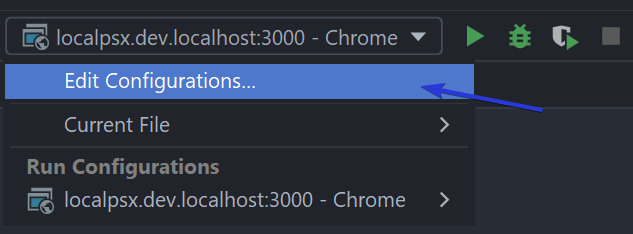
Run -> Edit Configurations

or 

Click the drop down near the run/debug icons, select Edit Configurations


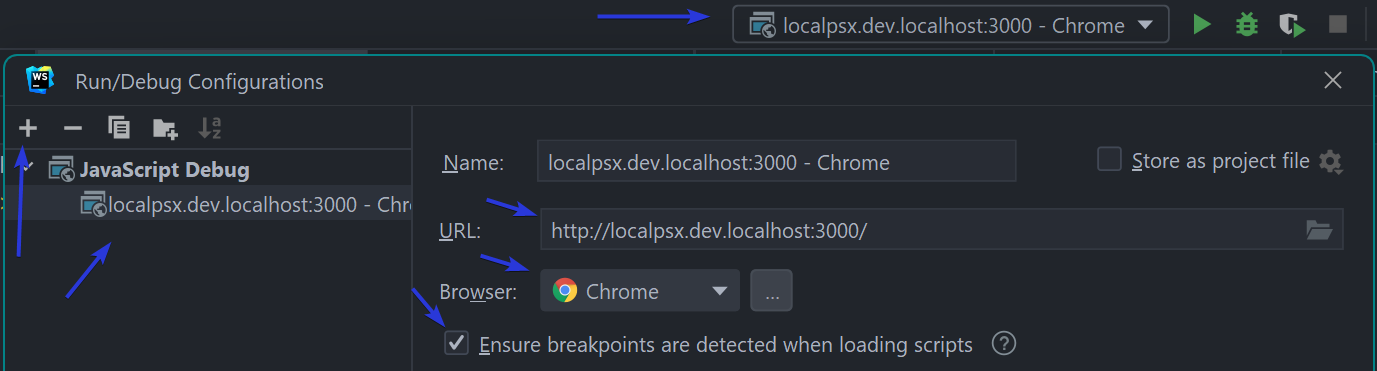
Add a new configuration, click the + button

Choose JavaScript Debug

Change the url to match your development environment, often localhost:3000 
Save


Click the Debug icon, the green bug button, next to the green play button

WebStorm by default will launch a new Chrome instance

However, it will not have any of your plugins.

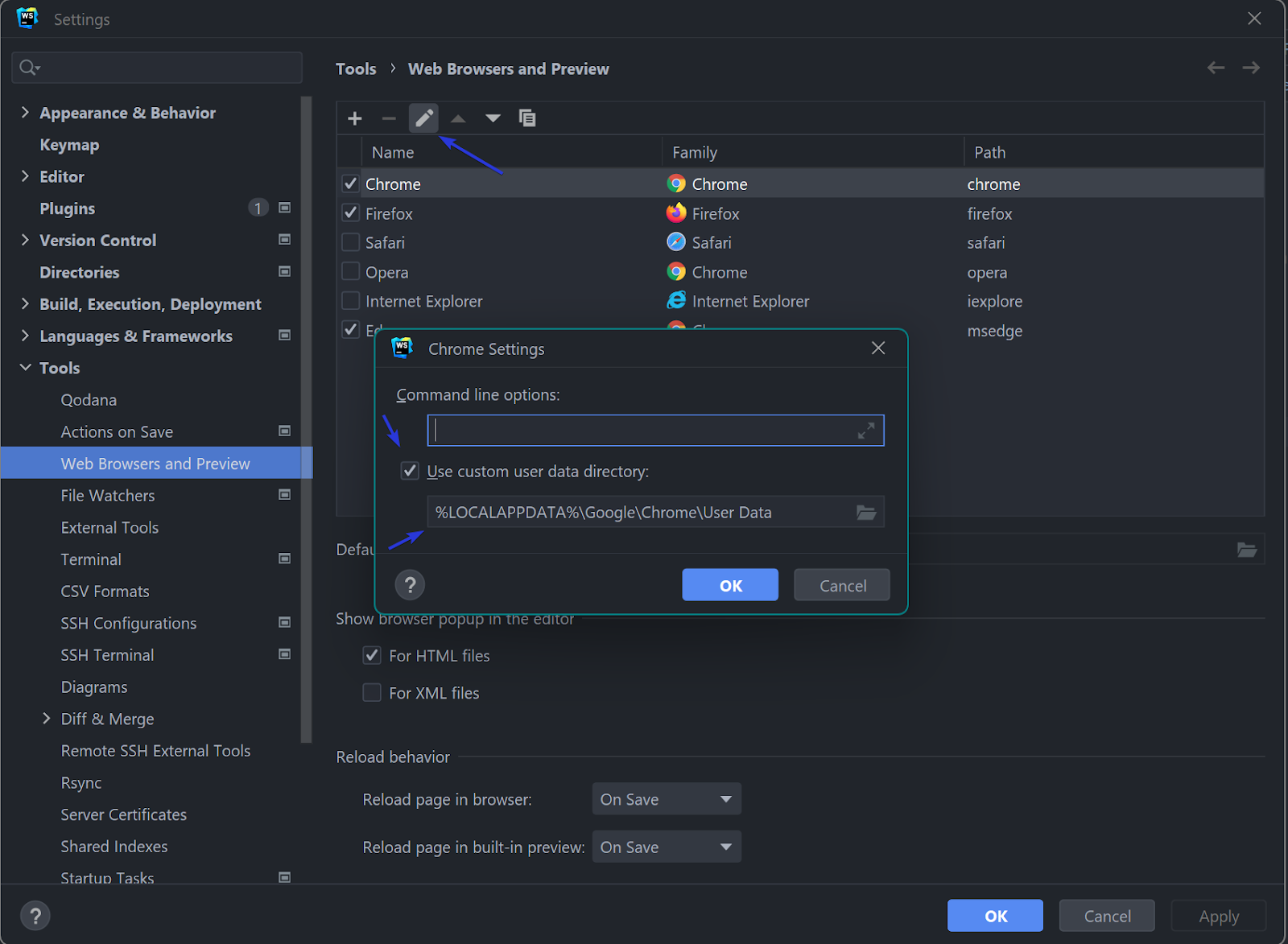
You can re-install all your plugins, or better, edit the browser configuration in WebStorm


Customize browser config

File -> Settings -> Tools -> Web Browsers and Preview

Edit Chrome

Enable Use custom user data dictionary, and past in the path to your Chrome user data directory

Windows %LOCALAPPDATA%\Google\Chrome\User Data

Mac OSX ~/Library/Application Support/Google/Chrome

Linux ~/.config/google-chrome

source: https://chromium.googlesource.com/chromium/src/+/master/docs/user_data_dir.md#Windows


Additional information from WebStorm

source: https://blog.jetbrains.com/webstorm/2017/01/debugging-react-apps/


-End of Document-

Thanks for reading


Monday, April 25, 2022

Exclude Code from Defender

If you are using Windows, or other OSes which have antivirus/malware scanners installed such as Windows Defender, you can increase the responsiveness and decrease the time taken for your code installs, transpiles, complies, etc by simply excluding your code from their scans.

Best practice, keep your versioned code in a common directory, such as

C:/Users/[user]/My Documents/ado/[repo-name]

or 

C:/dev/git/[repo-name]


And then simply exclude that directory from your antivirus/malware scanner(s).

An example for Windows Defender on Windows 10


After excluding your code directory, code installs such as npm, composer, nuget, maven, etc will not take as long and use much less resources eg cpu, disk i/o.

-End of Document-
Thanks for reading
Monday, March 21, 2022

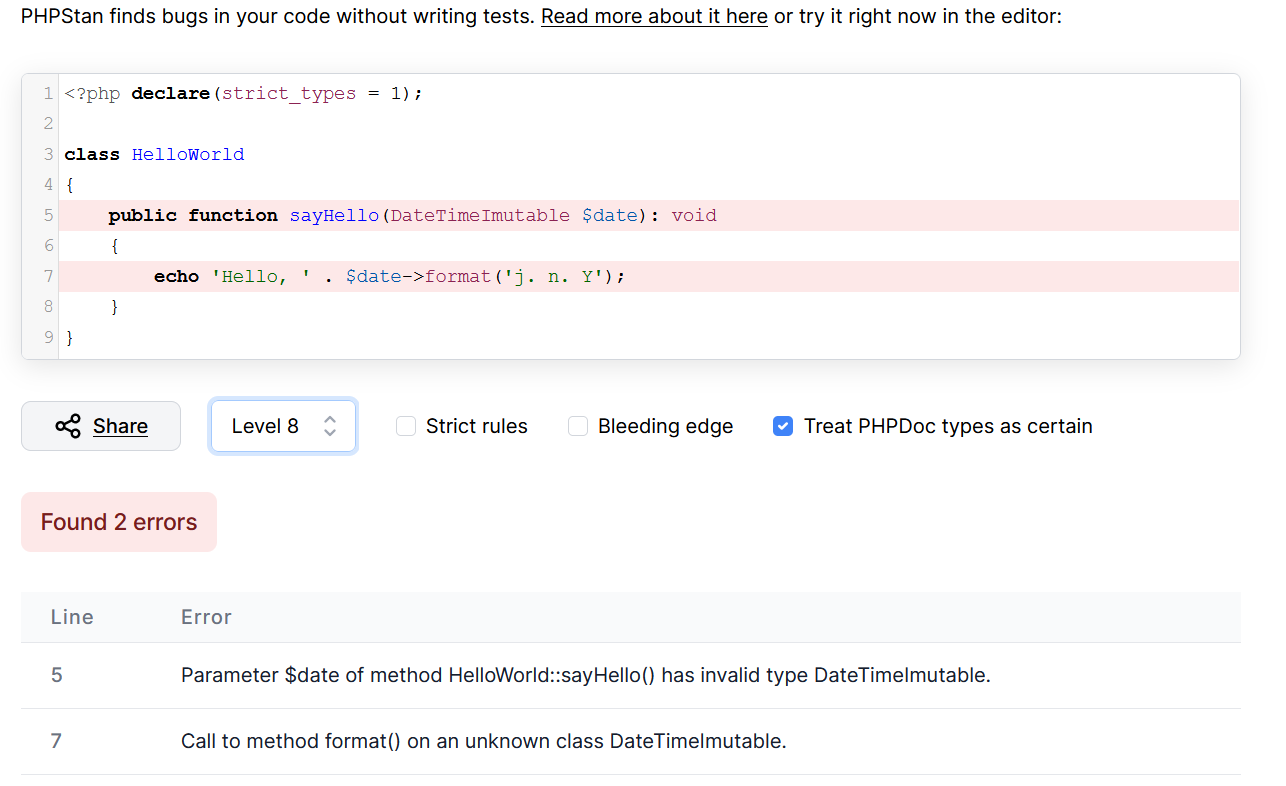
PHPStan - static analysis of PHP code

 'PHPStan finds bugs in your code without writing tests.' https://phpstan.org/

PHPStan performs static code analysis on your code.

Static analysis is the method of testing your code for basic logical, runtime or typographical exceptions without actually executing the code or accessing external services like databases

Static analysis of your codebase happens relatively fast since the code doesn't actually get executed but scanned for common errors, like having a method that doesn't return the expected date type.

PHPStan checks for a couple of language constructs such as use of instanceof, try-catch blocks, typehints, number of arguments passed to a function, accessibility of called methods and variables, and many more.

Install PHPStan

> composer require --dev phpstan/phpstan


Add helper script commands to composer.json

    "scripts": {

        "phpstan-dev": "php vendor/bin/phpstan analyse -c phpstan.neon --memory-limit=1G",

        "phpstan-ci": "php vendor/bin/phpstan analyse -c phpstan.neon --memory-limit=1G --no-progress",

...

    }


-c:
The configuration file phpstan.neon allows you to commit additional options for your project

--memory-limit=1G:
argument is to suppress a common false warning on runs which suggests that the errors are due to a memory limit;  projects often only consume tens to a couple hundreds of MB.

--no-progress:
omits the progress bar which could be useful for Continuous Integration runs.

Configuration

PHPStan makes use of the neon file format for its configuration, which is yaml like. 

An example configuration file, phpstan.neon:

# https://phpstan.org/config-reference

parameters:

    # https://phpstan.org/user-guide/rule-levels

    level: 8

    # code paths

    paths:

        - cfg

        - public

        - src

    excludePaths:

        analyse:

            - vendor

    tmpDir: tmp

    # https://phpstan.org/config-reference#vague-typehints

    checkMissingIterableValueType: false

    checkGenericClassInNonGenericObjectType: false

    # btr if true, but false allows changing level w/o errors

    reportUnmatchedIgnoredErrors: true

    ignoreErrors:

        - '#Negated boolean expression is always true\.#'

        - '#If condition is always false\.#'
...


level:
indicates how many tests to run
https://phpstan.org/user-guide/rule-levels

paths: 

should point to your code


excludePaths:

should exclude code you are not responsible for, such as vendor


tmpDir: 

if not set will use your default os tmp dir, but setting to a local tmp allows for easier cleanup, observation


ignoreErrors:

allows common code patterns in your project to be ignored by PHPStan

https://phpstan.org/user-guide/ignoring-errors

This should be used minimally, but may be necessary depending on your code.  It can also be used when adding PHPStan to an existing project with lots of errors and you want to ease PHPStan into your workflow.


reportUnmatchedIgnoredErrors:

shows you if you have any unused ignoreError expressions


Run PHPStan

Run using composer

> php composer phpstan-dev

php vendor/bin/phpstan analyse -c phpstan.neon --memory-limit=1G

...

------------------------------------------------------------------------------

  Line   src\Your\Service\AService.php

------------------------------------------------------------------------------

  15     Property App\Your\Service\AService::$aDomain has no typehint specified.

------------------------------------------------------------------------------

...

 [ERROR] Found 214 errors

 115/115 [============================] 100%

Script php vendor/bin/phpstan analyse -c phpstan.neon --memory-limit=1G handling the phpstan event returned with error code 1


Now the 'fun' begins.  The errors list the file name, method, and line number.  Go through all the reported errors and 'fix' them increasing code quality, and sometimes functionality; and only if necessary, add the error(s) to the ignore list.

Work toward the goal of no reported errors


> php composer phpstan-dev

php vendor/bin/phpstan analyse -c phpstan.neon --memory-limit=1G


 115/115 [============================] 100%


 [OK] No errors


Now celebrate!

And before every Push, Pull/Merge Request, run PHPStan.

Sounds like a good job for git hooks or CI huh?


-End of Document-

Thanks for reading


Monday, February 21, 2022

Enable PHP 8 xdebug from the command line

 "Xdebug is an extension for PHP, and provides a range of features to improve the PHP development experience. Step Debugging A way to step through your code in your IDE or editor while the script is executing."

Source: https://xdebug.org/ 

Install following the instructions from https://xdebug.org/docs/install

Note, PHP 8 settings are different than earlier versions of PHP, xdebug
For PHP 7 settings, see the prior post 
Enable PHP xdebug from the command line 

Download and place the xdebug extension in php\ext
C:\laragon8\bin\php\php-8.0.11-Win32-vs16-x64\ext

Configure your PHP 8 php.ini settings:

zend_extension=xdebug-3.0.4-8.0-vs16-x86_64

[xdebug]
xdebug.mode=debug
xdebug.start_with_request=yes
xdebug.client_host=127.0.0.1
xdebug.client_port=9081
xdebug.idekey=PHPSTORM 

Note, if you use xdebug.start_with_request=trigger, this may be more efficient for large code paths as xdebug should only be started when you send a request with XDEBUG_SESSION set, which can be set via xdebug helper for chrome or xdebug helper for firefox


You can also add arguments to your PHP call

> php -d -dxdebug.mode=debug -dxdebug.start_with_request=yes -dxdebug.client_host=127.0.0.1 -dxdebug.client_port=9081 -dxdebug.idekey=PHPSTORM your/script.php

The option -d can set/override php.ini values

-d foo[=bar]     Define INI entry foo with value 'bar'
Reference: https://www.php.net/manual/en/features.commandline.options.php


If you are using the conemu console you can add the alias to your settings -> startup -> environment

alias xphp8=C:/laragon80/bin/php/php-8.0.11-Win32-vs16-x64/php -dxdebug.mode=debug -dxdebug.start_with_request=yes -dxdebug.client_host=127.0.0.1 -dxdebug.client_port=9081 -dxdebug.idekey=PHPSTORM $*

alias php8=C:/laragon80/bin/php/php-8.0.11-Win32-vs16-x64/php $*

If you are using git for windows, which adds bash, you can also add the aliases
Edit your .bashrc
C:\Users\[youruser]\.bashrc

alias xphp8="C:/laragon80/bin/php/php-8.0.11-Win32-vs16-x64/php -dxdebug.mode=debug -dxdebug.start_with_request=yes -dxdebug.client_host=127.0.0.1 -dxdebug.client_port=9081 -dxdebug.idekey=PHPSTORM $*"

alias php8="C:/laragon80/bin/php/php-8.0.11-Win32-vs16-x64/php $*"


And use as

> xphp8 slimapp/cli.php arg1 arg2=test

Reference: Slim PHP CLI


-End of Document-
Thanks for reading
 

Monday, January 24, 2022

App breaks out of Cypress test run frame

Cypress is a end-to-end testing framework which is fast, easy and reliable testing for anything that runs in a browser.
Cypress version: 8.3.0

When using Cypress with ReactJS, you may run into a scenario where the tests run the first time, but subsequent tests break out of the Cypress tests run frame; and just shows your app, or your apps loading indicator.  So your tests stop.  

While clearing the Cypress cache fixes the tests for the next run, there should be a better solution.

In the developers tools, if you enable preserve logs for the console and network, you may see a redirect to `__`

Some searching for `cypress redirects to __` will lead you to

'Cypress test runner redirects to __ suddenly'

which suggests adding 
`
Cypress.on('window:before:load', (win) => {
      Object.defineProperty(win, 'self', {
            get: () => {
                return window.top
            }
        })
});
`

To add to your Cypress config,
assuming in `cypress.json` you have your support dir set to 
"supportFile": "[app-product]/support",

add the suggestion to a file
support/callbacks/fix_iframe_redirects.js

and in the support/index.js,
reference the file
import './callbacks/fix_iframe_redirects';

You may have to force refresh the Cypress browser, or clear the Cypress cache once more.

Additional config to check for:
While this seems to be the default, if you happen to be using an ejected Webpack config, also check that `navigateFallbackWhitelist` is set to check for `__`.  

...
new SWPrecacheWebpackPlugin({
...
navigateFallback: publicUrl + "/index.html",
navigateFallbackWhitelist: [/^(?!\/__).*/]
});


You may also encounter the generic error:
TypeError: Cannot set property name of  which has only a getter

Unfortunately, it seems that you can either delete the Cypress cache each time, or disable Chrome web security
tests/cypress/cypress.json
    "chromeWebSecurity": false,
With these changes, your Cypress tests should stay framed and run as expected.


-End of Document-
Thanks for reading 

Monday, December 6, 2021

Windows Development Software - Tweaks

This is a series of posts which will list some useful apps for development and general usage of Windows. These are just some examples of what can be useful. Of course, use any app you already know or have.

tweak windows:

Open Shell

https://github.com/Open-Shell/Open-Shell-Menu

Start menu replacement with Classic style Start Menu for Windows 7, 8, 8.1, 10 and Toolbar for Windows Explorer


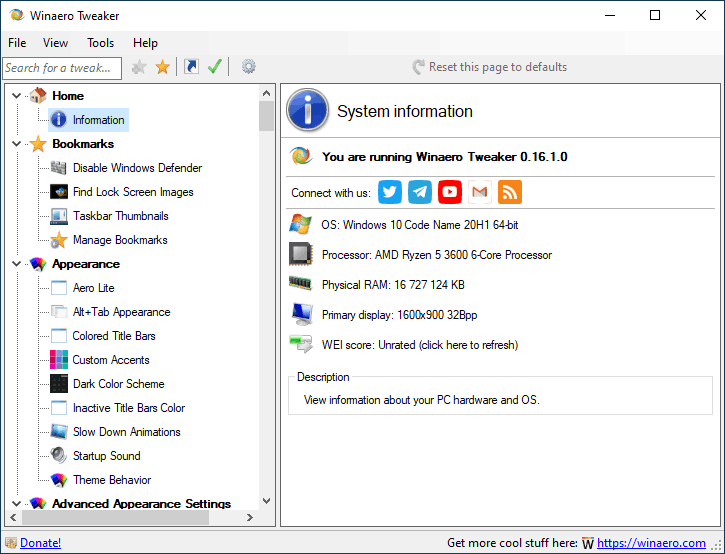
Winaero Tweaker

https://winaerotweaker.com/

Winaero Tweaker is a freeware app, all-in-one application that comes with dozens of options for fine-grained tuning of various Windows settings and features.


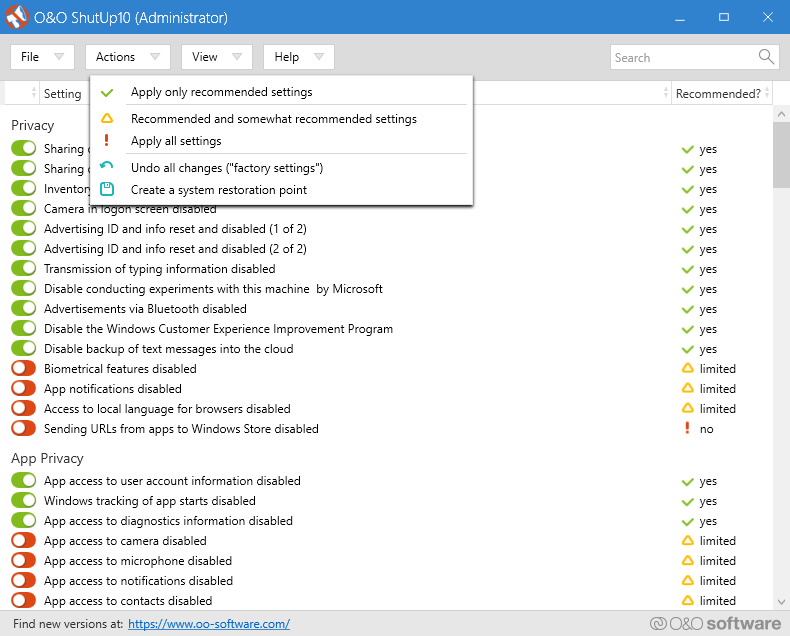
O&O ShutUp10

https://www.oo-software.com/en/shutup10

O&O ShutUp10 means you have full control over which comfort functions under Windows 10 you wish to use, and you decide when the passing on of your data goes too far. Using a very simple interface, you decide how Windows 10 should respect your privacy by deciding which unwanted functions should be deactivated.


-End of Document-
Thanks for reading 
Monday, November 22, 2021

Windows Development Software - Maintenance/Security/Utilities

This is a series of posts which will list some useful apps for development and general usage of Windows. These are just some examples of what can be useful. Of course, use any app you already know or have.


maintenance/security/utilities:

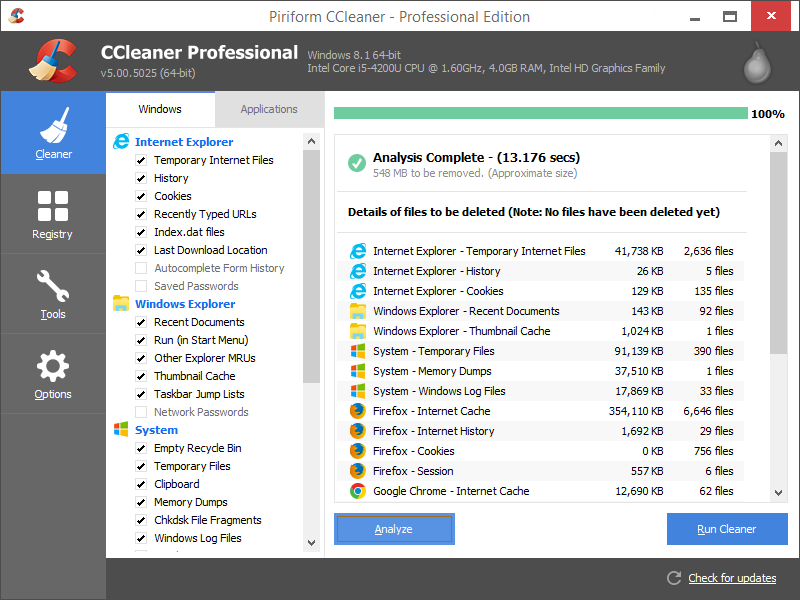
CCleaner 

https://www.ccleaner.com/ccleaner/

CCleaner is the number-one tool for cleaning your PC.

It protects your privacy and makes your computer faster and more secure!


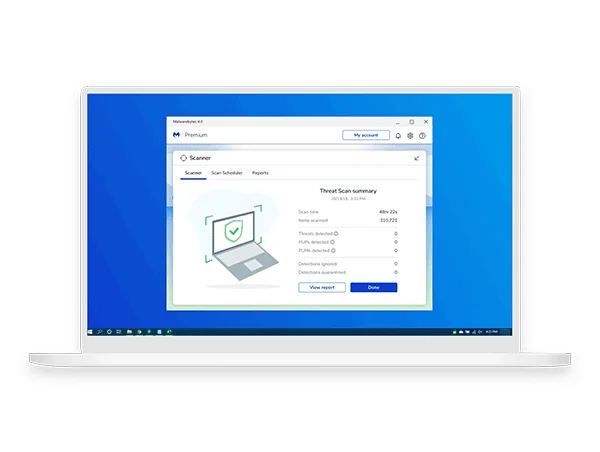
Malwarebytes 

https://www.malwarebytes.com/for-home/

Malwarebytes doesn’t just find threats like malware and viruses, it also finds potentially unwanted programs that can slow you down. Malwarebytes protects all your devices and personal info from threats, so you can shop, play, and connect without a second thought.


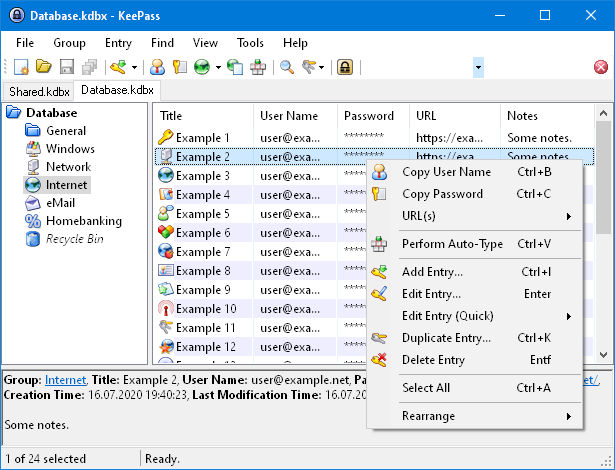
KeePass 

https://keepass.info/

KeePass is a free open source password manager, which helps you to manage your passwords in a secure way. You can store all your passwords in one database, which is locked with a master key. So you only have to remember one single master key to unlock the whole database. Database files are encrypted using the best and most secure encryption algorithms currently known


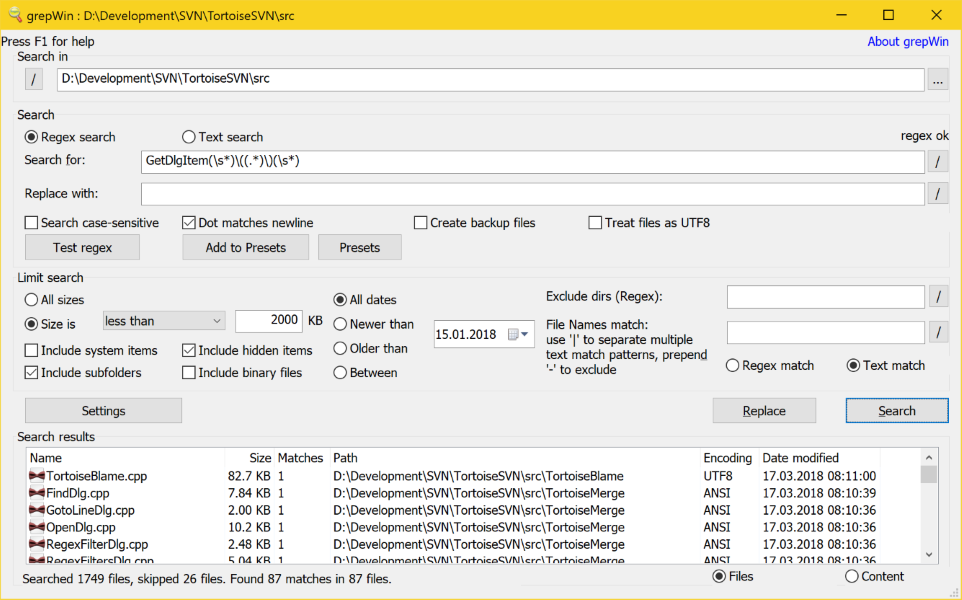
grepWin 

https://github.com/stefankueng/grepWin

grepWin is a simple search and replace tool which can use regular expressions to do its job. This allows to do much more powerful searches and replaces.


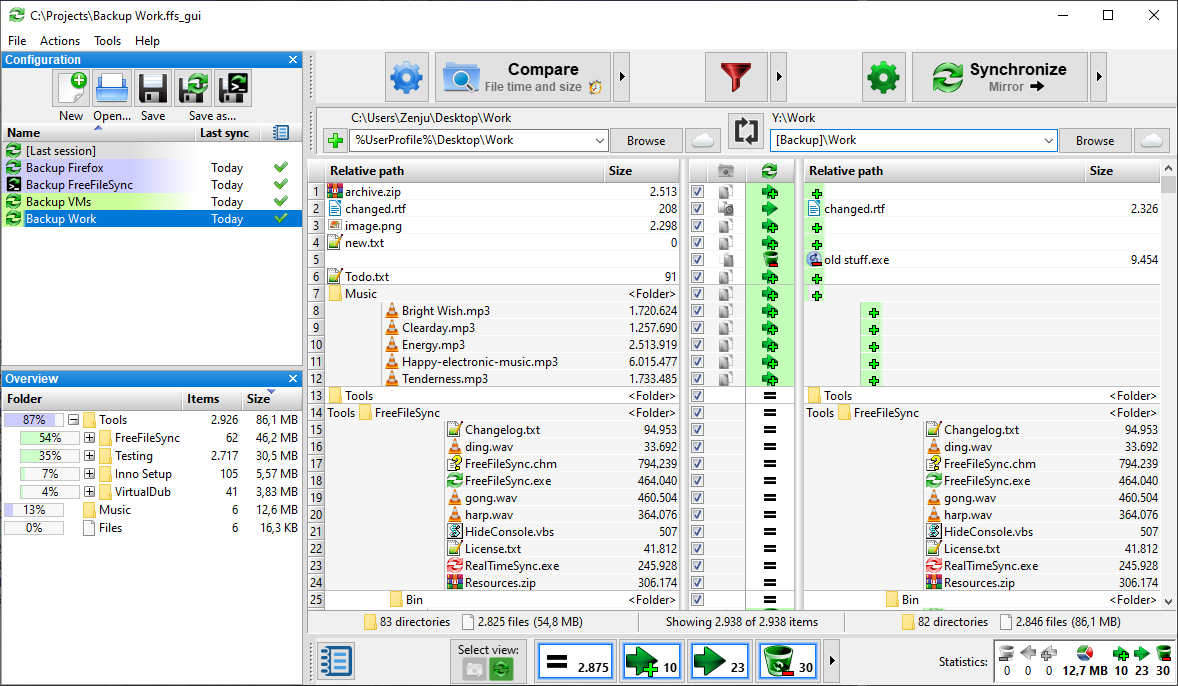
FreeFileSync 

https://freefilesync.org/

FreeFileSync is a folder comparison and synchronization software that creates and manages backup copies of all your important files. Instead of copying every file every time, FreeFileSync determines the differences between a source and a target folder and transfers only the minimum amount of data needed. FreeFileSync is Open Source software, available for Windows, macOS, and Linux.


WinMerge 

https://winmerge.org/

WinMerge is an Open Source differencing and merging tool for Windows. WinMerge can compare both folders and files, presenting differences in a visual text format that is easy to understand and handle.


-End of Document-
Thanks for reading